Installing the Utsusemi Binary Package on Windows 11#
- Author:
Yasuhiro Inamura
- Last Updated:
Sep. 3rd, 2026
- Supported Utsusemi Release:
4.0 or later
Overview#
This document explains how to install Utsusemi on Microsoft Windows using the binary installer package.
As of November 2025, the following MLF beamlines are supported in the Windows release.
BL(code) |
Notes |
Status |
|---|---|---|
BL01(SIK) |
No restrictions |
Supported |
BL11(HPN) |
Teuse app. is not included |
Supported |
BL14(AMR) |
No restrictions |
Supported |
BL15(SAS) |
Dview app. is not included |
Supported |
BL19(ENG) |
Core functionality only |
Supported |
System Requirements#
The Windows environment officially supported by Utsusemi is listed below. Other operating systems and architectures, including all 32-bit environments, are not supported and are not planned for future support.
Windows |
Architecture |
|---|---|
11 |
x86_64 (amd64) |
Important Prerequisites#
Before installation, please review the following requirements regarding user account names and folder paths.
Utsusemi may not function correctly if Japanese characters are included in:
The Windows user account name
Folder names used to store experimental data
Any directory contained within a file path
Because the Windows account name becomes part of many system paths, the administrator account used for installation must contain only alphanumeric characters.
If your current Windows account name contains Japanese characters, create a new account with an alphanumeric name, log in to that account, and perform the installation there.
Installation Workflow#
The installation process consists of the following steps:
Verify or prepare the Python environment.
Choose the appropriate installer type.
Download the installer package.
Run the installer.
Configure the Utsusemi environment.
Selecting the Appropriate Installer#
Two installation packages are available for Windows.
All-in-One Installer#
Choose the All-in-One installer if:
Python is not installed on the target computer.
You do not want to manage a Python environment manually.
This package includes Python and all required dependencies. However, it may conflict with existing Python installations already present on the system.
Minimum Installer#
Choose the Minimum installer if:
A Python environment is already installed.
You use Anaconda or another managed Python distribution.
You want to integrate Utsusemi into an existing Python setup.
The Minimum package does not include Python and requires some manual preparation.
The Minimum installer supports the following Python versions:
Python 3.13
Python 3.12
(as of August 2026)
Installer Comparison#
Type |
Description |
|---|---|
All-in-One |
Includes Python and all required software components. Recommended for first-time users. |
Minimum |
Installs only Utsusemi. Requires an existing compatible Python environment. |
Downloading the Installer#
Installers can be downloaded from the Utsusemi Installation Portal .
Select the package that matches your environment:
All-in-One for standalone installation
Minimum for existing Python environments
For Minimum installations, be sure to download the installer corresponding to your Python version.
Installations#
Installing the All-in-One Package#
Download the All-in-One installer from the Utsusemi Installation Portal. All-in-One Installer can be downloaded from the All-in-One link on the Utsusemi Installation Portal .
If an older version of Utsusemi is installed, uninstall it first.
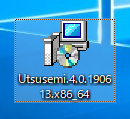
Double-click the installer to launch the installation wizard.
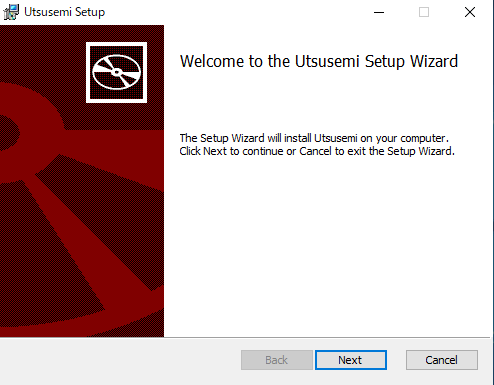
Click Next through the setup screens (Setup Wizerd)
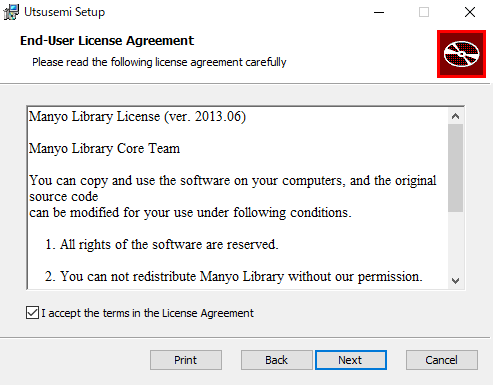
Accept the license agreement and click Next.
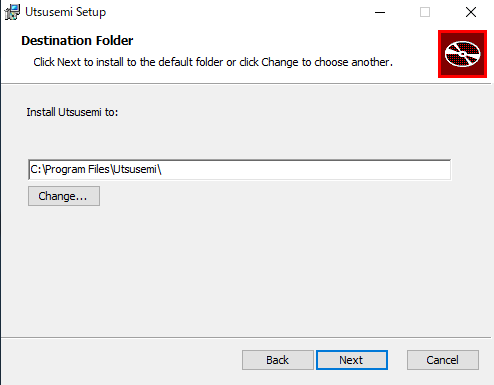
Confirm the installation directory and click Next. (Default directory is “C:¥¥Program Files¥Utsusemi¥”)
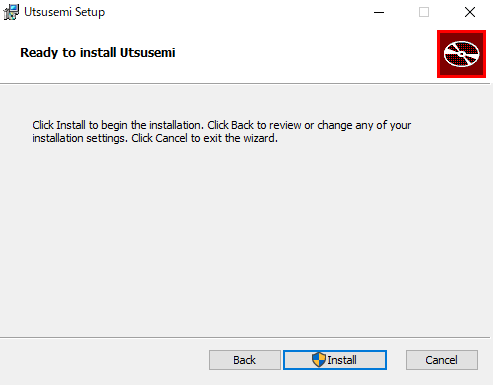
Click Install at “Ready to Install Utsusemi” dialog.
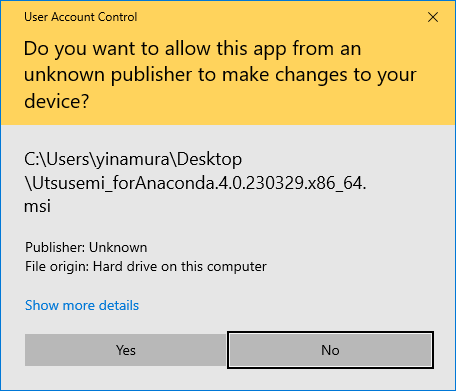
If Windows User Account Control (UAC) appears, select Yes.
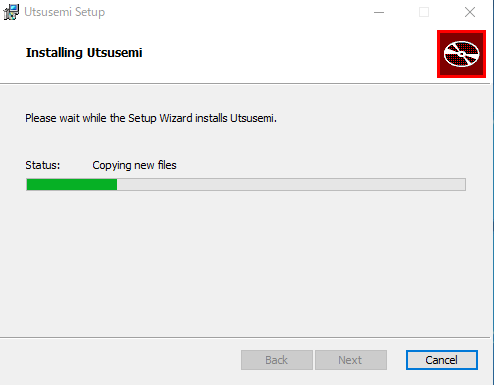
Wait approximately two to three minutes for the installation to complete.
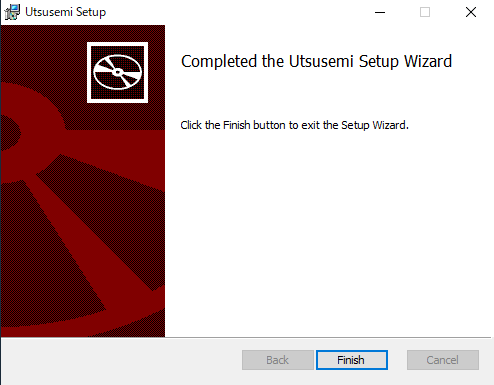
When the completion dialog appears, click Finish.
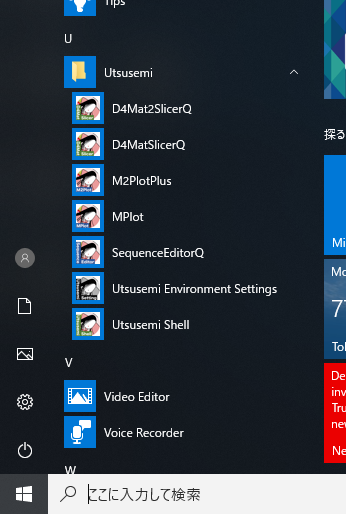
Verify that Utsusemi applications are available from the Windows Start Menu.
Finally, open Command Prompt as an administrator and run the following command. This installs the Python modules required by Utsusemi using pip. (required by version of 4.0.260901 or later)
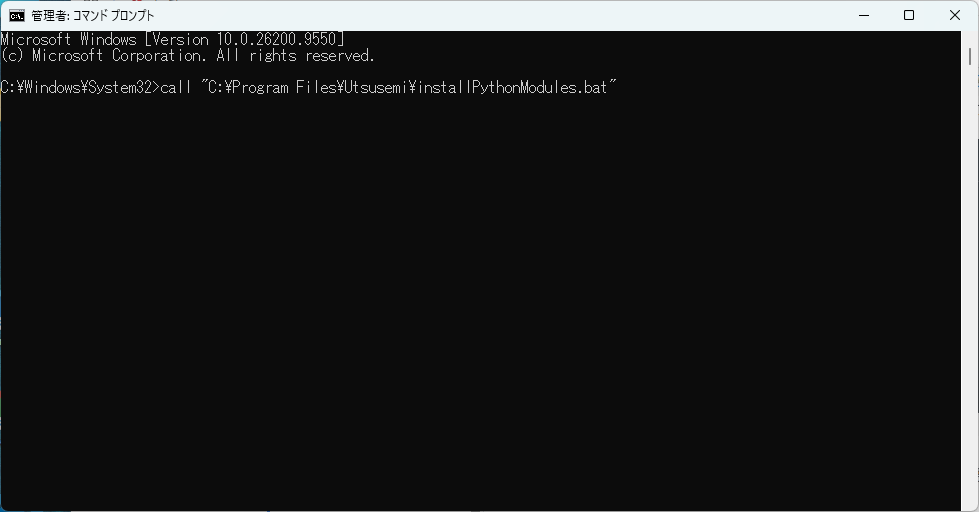
call "C:\Program Files\Utsusemi\installPythonModules.bat"
If Successfully installed is displayed at the end, as shown in the example below, the installation has completed successfully.
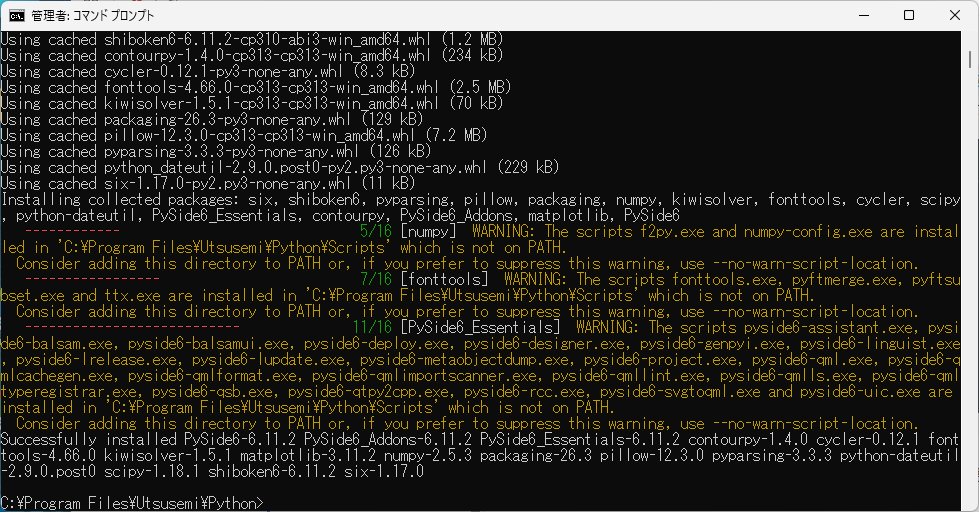
>call "C:\Program Files\Utsusemi\installPythonModules.bat"

...

Successfully installed PySide6-6.11.1 PySide6_Addons-6.11.1 PySide6_Essentials-6.11.1 contourpy-1.3.3 cycler-0.12.1 fonttools-4.63.0 kiwisolver-1.5.0 matplotlib-3.11.1 numpy-2.5.2 packaging-26.3 pillow-12.3.0 pyparsing-3.3.2 python-dateutil-2.9.0.post0 scipy-1.18.0 shiboken6-6.11.1 six-1.17.0
Installing the Minimum Package#
The Minimum installer should be used when a compatible Python environment is already available.
Required Python environment and packages#
python version |
|---|
3.13 |
3.12 |
Before installation, verify that the following packages can be imported successfully:
Packages |
numpy, scipy, matplotlib, PySide6 |
Installation#
Download the installer corresponding to your Python version from the Minumum link on the Utsusemi Installation Portal .
Utsusemi_minimum.*.PY313.x86_64.msi (link “4.0.*.PY313(minimum)”)
Utsusemi_minimum.*.PY312.x86_64.msi (link “4.0.*.PY312(minimum)”)
The installation wizard itself is identical to the All-in-One installation procedure once the Python environment has been prepared.
Installed Applications#
After installation, shortcuts are created under:
Start Menu > Utsusemi
If an application is not visible, search for its name using the Windows Search feature.
Applications |
Description |
|---|---|
D4MatSlicer |
Launches D4MatSlicer |
D4Mat2Slicer |
Launches D4Mat2Slicer |
M2PlotPlus |
Launches M2Plot |
MPlot |
Launches MPlot |
SequenceEditorQ |
Launches SequenceEditor |
Utsusemi Environment Settings |
Configures Utsusemi environment variables |
Utsusemi Shell |
Opens a terminal configured for the Utsusemi environment |
Uninstalling Utsusemi#
To remove Utsusemi, use either:
Windows Programs and Features
The original Utsusemi installer in uninstall mode
Some files and folders may remain after uninstallation. These can be removed manually if desired.
Installation Directory
C:\Program Files\Utsusemi
User Configuration Directory
C:\Users\<username>\AppData\Roaming\Utsusemi
The configuration directory contains user settings. If retained, those settings may be reused during future installations.
Troubleshooting#
Installation issues generally fall into two categories:
Problems immediately after installation
Problems occurring while running commands or visualization tools
問題が発生する場合、以下の二つの場面が考えられる。
Applications Do Not Start After Installation#
If Utsusemi applications fail to launch immediately after installation, the most likely causes are:
Installation failure
Incorrect environment configuration
Recommended actions:
Uninstall Utsusemi.
Reinstall the software.
Reconfigure the environment.
If the issue persists, report the error details to the software maintainer.
Common Causes#
An unsupported Python version is installed.
Multiple Python distributions are installed simultaneously.
Existing Python installations are corrupted or incorrectly configured.
When multiple Python installations exist on a system, environment conflicts are common and may prevent Utsusemi from functioning correctly.
Appendix#
Example Environment Setup for a Minimum Installation#
Using Python.org#
This section provides a simple example of creating a compatible environment using the Python installer available from Python.org.
Download and install Python 3.12, or 3.13 from the Python.org Downloads page: - https://www.python.org/downloads/
During installation, enable Add Python to PATH so that Python is added to the system PATH environment variable.
After Python has been installed, open a Command Prompt window and install the required packages using pip.
python -m pip install scipy
python -m pip install matplotlib
python -m pip install PySide6
Install Utsusemi using the Minimum Installer.
Once the Python environment has been prepared, the remaining installation procedure is identical to the All-in-One installation process.
Using Anaconda#
As described earlier, the required environment for running Utsusemi is one in which all required packages can be successfully imported from Python within a Command Prompt session.
Example:
C:\Users\hoge>python
Python 3.11.9 (tags/v3.11.9:de54cf5, Apr  2 2024, 10:12:12) [MSC v.1938 64 bit (AMD64)] on win32
Type "help", "copyright", "credits" or "license" for more information.
>>> import numpy
>>> import scipy
>>> import matplotlib
>>> import PySide6
This section describes the procedure used to build a validation environment using Anaconda in November 2025.
Warning
The procedures and package versions described here reflect the environment available in November 2025. Future versions of Anaconda, Python, or related packages may behave differently. Adjust the instructions as appropriate for your environment.
Test Environment#
Component |
Version |
|---|---|
Operating System |
Windows11 25H2 |
Anaconda |
Anaconda3-2025.06-0-Windows-x86_64.msi (Python3.13) |
Utusemi Installer |
Utsusemi_minimum.4.0.251011.PY313.x86_64.msi |
Anaconda can be downloaded from the Anaconda site .
Installing Anaconda#
Launch the downloaded Anaconda installer and proceed through the standard installation wizard.
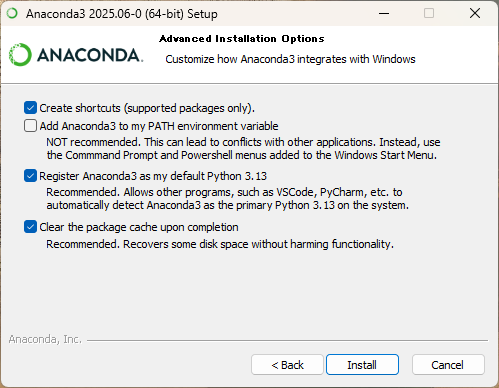
The following options were selected during installation.
ダウンロードしたAnacondaインストーラを起動し、通常のインストール手順に則って進める。
ただし、Anacondaのインストール時に表示されるいくつかのダイアログにおける設問には下記のように回答している。
Choose Just Me (recommended) on Select Installation Type
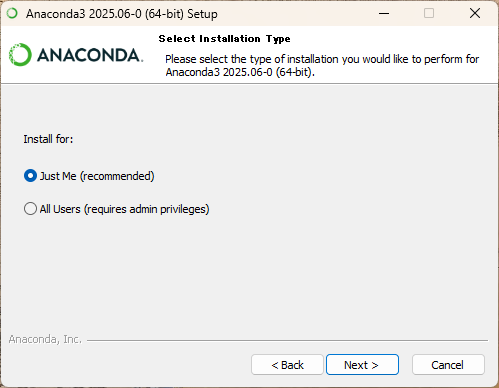
Check as below on Advanced Installation Options Customize how Anaconda3 integrates with Windows
Create shortcuts (supported package only)
Register Anaconda3 as my default Python 3.13
Clear the package cache upon completion
Configuring Anaconda for Command Prompt Usage#
After installing Anaconda, launching Command Prompt may still invoke a different Python installation instead of Anaconda Python.
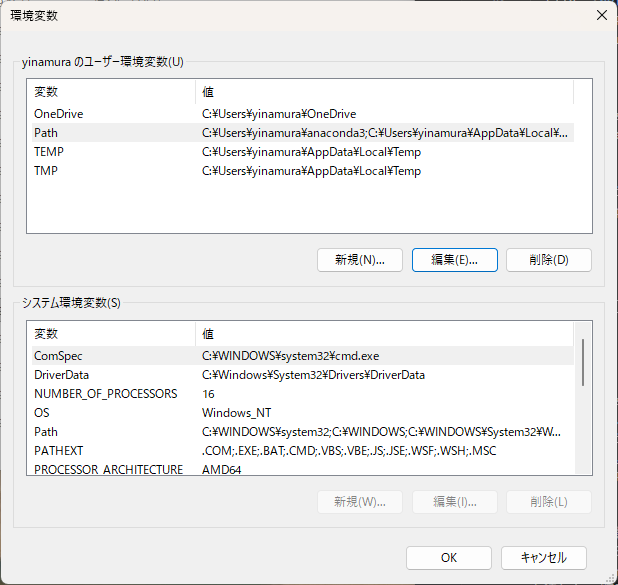
To ensure that Anaconda Python is used, update the Windows Path environment variable.
Open the Windows search box.
Search for Environment Variables.
Select Edit the system environment variables.
Open the Environment Variables dialog.
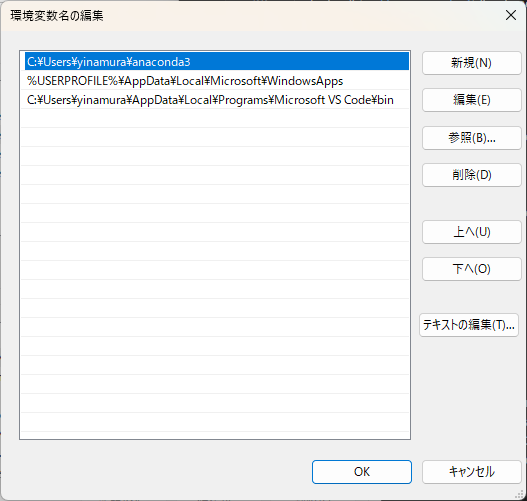
Edit the Path environment variable.
In this example, the installer was configured with Just Me, so the following directory should be added to Path:
C:\Users\hoge\anaconda3
Move this entry to the top of the Path list so that it takes precedence over other Python installations.
After updating the Path variable, open a new Command Prompt window and confirm that the correct Python version is available.
C:\Users\hoge>python
Python 3.13.5 | packaged by Anaconda, Inc. | (main, Jun 12 2025, 16:37:03) [MSC v.1929 64 bit (AMD64)] on win32
Type "help", "copyright", "credits" or "license" for more information.
>>>
Installing Required Packages#
Install the packages required by Utsusemi.
In this example, no virtual environment is used, so the packages are installed into the default Conda environment, base.
Launch Anaconda Prompt and install the required package(s).
Because numpy, scipy, and matplotlib were already installed in the example environment, only PySide6 needed to be installed.
Note
Instead of launching Anaconda Prompt, you may also open Command Prompt and activate Anaconda manually using conda activate.
(base) C:\Users\yinamura>conda install pyside6
3 channel Terms of Service accepted
Channels:
 - defaults
Platform: win-64
Collecting package metadata (repodata.json): \
...(中略)
Proceed ([y]/n)? y
...(中略)
done
After installation is complete, verify that the package can be imported successfully.
C:\Users\yinamura>python
Python 3.13.5 | packaged by Anaconda, Inc. | (main, Jun 12 2025, 16:37:03) [MSC v.1929 64 bit (AMD64)] on win32
Type "help", "copyright", "credits" or "license" for more information.
>>> import PySide6
>>>
Verifying Utsusemi Operation#
Launch Utsusemi Environment Settings either from its shortcut icon or by searching for it from the Windows Start menu.
If the application starts successfully, the installation and environment configuration are complete.
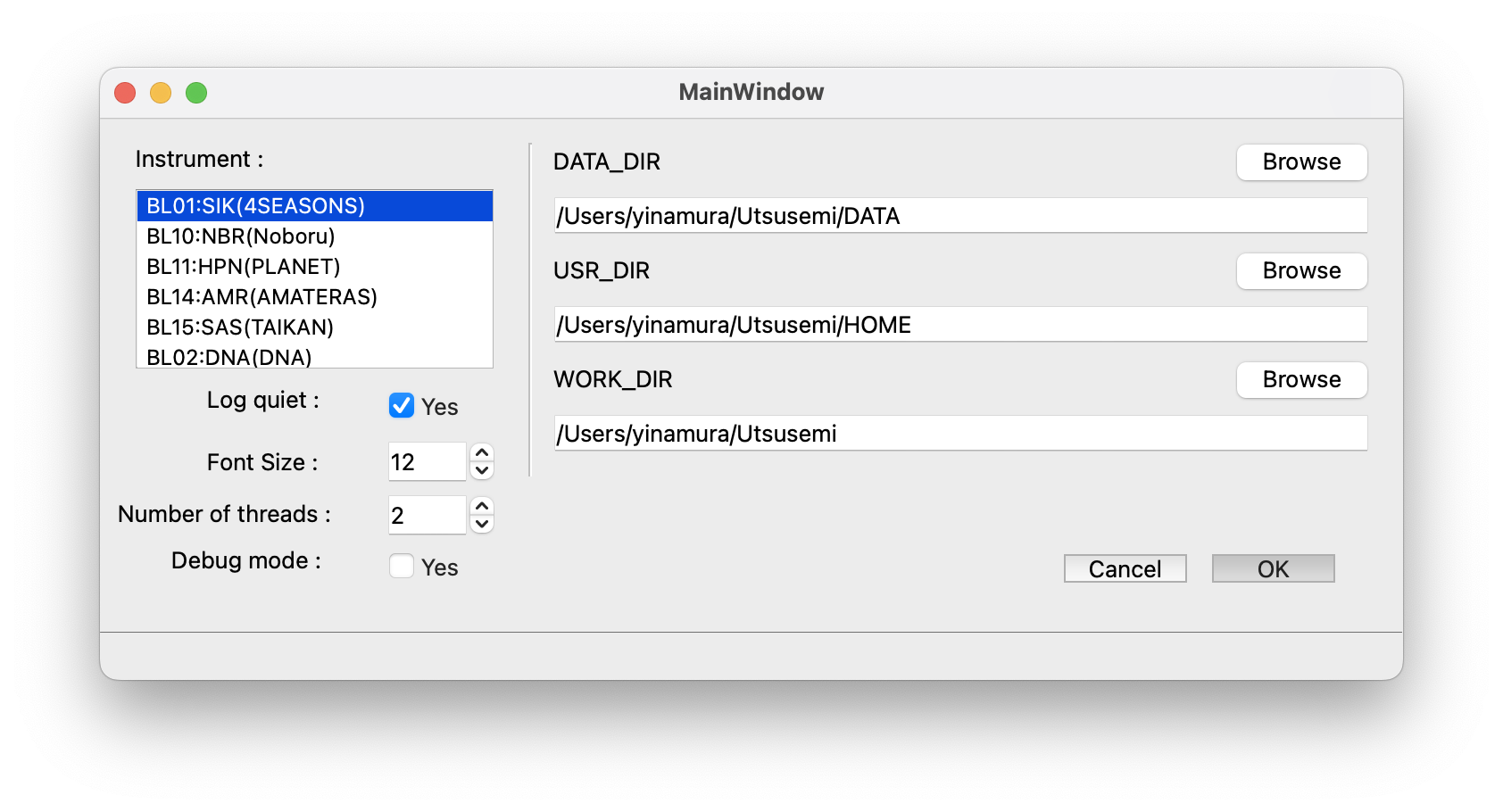
If the application fails to start and the following message appears in the Command Prompt window, the PATH environment variable is most likely configured incorrectly.
Python
!!! ERROR: Python 3.13.X (64-bit) is required to run Utsusemi
    Python 3.13.X is not available on the system
    or path information of Python has been broken for some reason.

 Please make sure that Python 3.13 is available on your computer.
 It does not matter which tool you use, such as anaconda or pyenv,
 but the environment for Utsusemi should be activated before you use it.