Installation and Environment Configuration#
- Author:
Yasuhiro Inamura
- Last Updated:
Sep. 3rd, 2026
- Supported Utsusemi Release:
4.0 or later
Overview#
This chapter explains how to install Utsusemi on supported operating systems and how to configure the required runtime environment.
Binary packages are provided for:
Microsoft Windows
macOS
Ubuntu Linux / Linux Mint
In addition, semi-automated build and installation scripts are provided for AlmaLinux 8 and AlmaLinux 9 systems.
As of Sep 2026, the beamlines supported by Utsusemi are listed below.
OS and versions |
Architecture |
BL01 |
BL02 |
BL11 |
BL14 |
BL15 |
BL17 |
BL19 |
BL21 |
|---|---|---|---|---|---|---|---|---|---|
Windows 11 |
x86_64(amd64) |
✅ |
✅* |
✅ |
✅ |
✅ |
✅ |
✅ |
|
macOS 15(Sequoia) / 14(Sonoma) / 13(Ventura) |
Apple silicon |
✅ |
✅* |
✅ |
✅ |
✅ |
✅ |
✅ |
|
Ubuntu Linux 22.04/24.04 |
x86_64(amd64) |
✅ |
✅ |
✅ |
✅ |
✅ |
✅ |
||
Mint Linux 23/22 |
x86_64(amd64) |
✅ |
✅ |
✅ |
✅ |
✅ |
✅ |
||
AlmaLinux 8/9 |
x86_64(amd64) |
✅ |
✅ |
✅ |
✅ |
✅ |
✅ |
✅ |
✅ |
✅* : Under testing.
Installation on Each Operating System#
Follow the installation instructions appropriate for your platform:
After installation and environment configuration have been completed, proceed to the initial setup described below.
Initial Setup (Common to All Platforms)#
The initial configuration of Utsusemi consists of:
Creating required directories - Data directory - Analysis workspace directory
Configuring environment variables through the environment-settings application
Creating Required Directories#
Utsusemi requires dedicated directories for storing experimental data and temporary analysis files.
Directory (Environment Variable) |
Purpose |
|---|---|
Data Directory (DATA_DIR) |
Directory used to store RAW data such as event data. The default location on Linux is /data. |
Analysis Directory (USR_DIR) |
Directory used to store Utsusemi working folders, including temporary directories such as ana/tmp. The default location on Linux is $HOME. |
Working Directory (WORK_DIR) |
User working directory. This becomes the current working directory when applications are launched. |
These directories may be located anywhere in principle.
However, macOS security restrictions may prevent applications from accessing folders located under Desktop, Documents, or Shared folders. For this reason, the default Utsusemi data location on macOS is placed directly under the user’s home directory (/Users/<username>/).
When Utsusemi Environment Settings is started for the first time, the required folders are automatically created in the default location. If this location is unsuitable for your workflow, you may specify alternative directories.
Directory |
Default Location |
|---|---|
Data Directory |
~/Documents/Utsusemi/DATA |
Analysis Directory |
~/Documents/Utsusemi/HOME |
Working Directory |
~/Documents/Utsusemi/HOME |
Directory |
Default Location |
|---|---|
Data Directory |
C:Users<username>DocumentsUtsusemiDATA |
Analysis Directory |
C:Users<username>DocumentsUtsusemiHOME |
Working Directory |
C:Users<username>DocumentsUtsusemiHOME |
Environment Configuration#
Use Utsusemi Environment Settings to configure the Utsusemi runtime environment.
macOS#
Launch Utsusemi Environment Settings from:
Applications → Utsusemi
Launchpad
Windows#
Launch Utsusemi Environment Settings from the Start Menu.
Linux#
Launch the following command from a terminal:
$ EnvironSetting
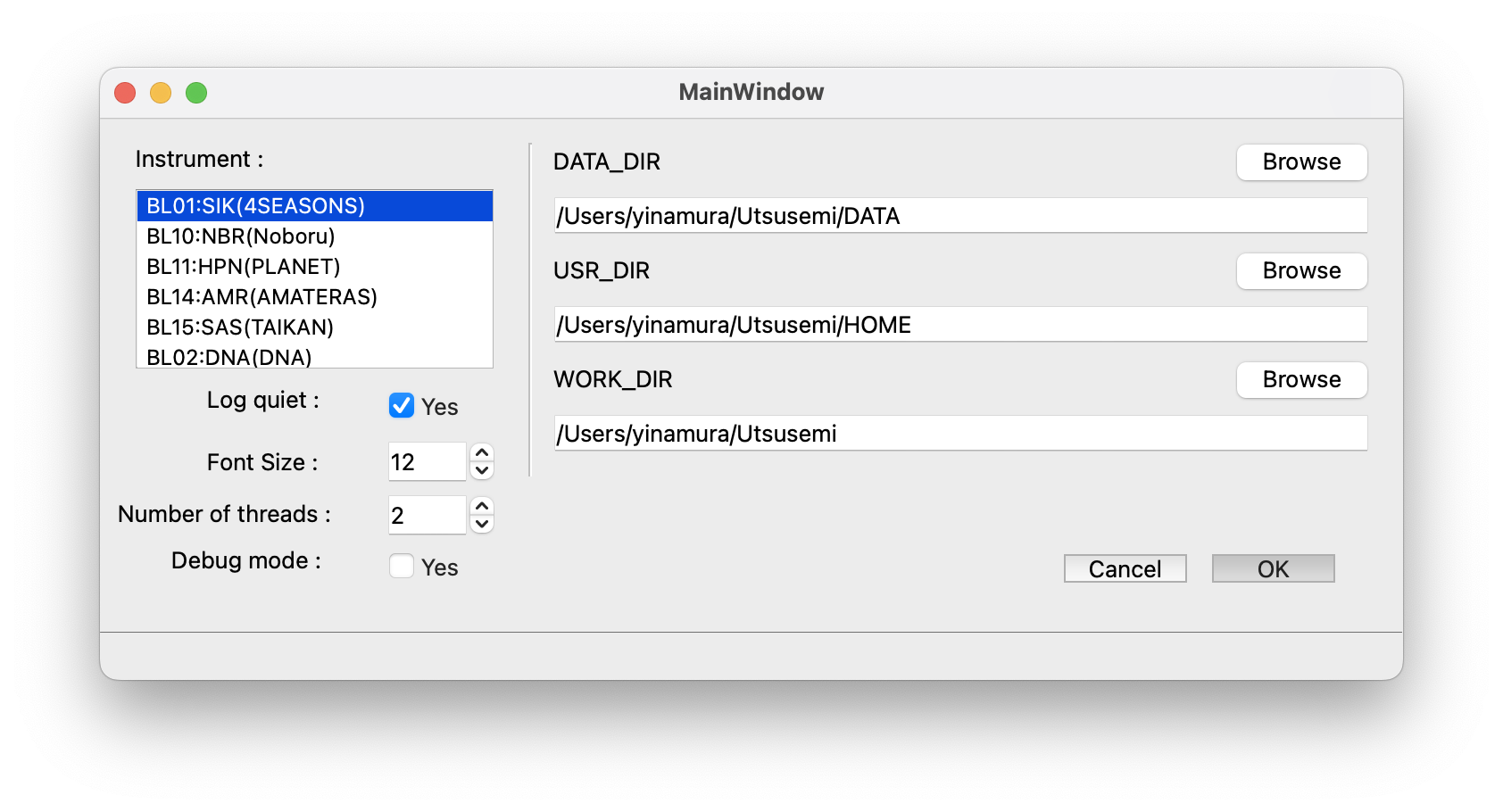
This configuration step must be performed at least once after installation.
The following items can be configured:
Instrument environment (BL01, BL02, BL10, BL11, BL14, BL15, etc.)
Data directory and analysis directory
Logging enable/disable
Default font size for GUI applications
Number of parallel processes used for performance optimization
Debug mode enable/disable
When analyzing data collected on a different beamline, launch the environment settings application again and switch to the appropriate instrument environment.
Configuration Parameters#
The following environment variables and settings can be configured through Utsusemi Environment Settings.
Setting |
Description |
|---|---|
Instrument |
Selects the instrument (beamline) whose data will be analyzed. This setting determines the RAW data directory and available analysis commands. |
Log quiet |
Reduces the amount of log output produced by analysis commands. Normally, Yes is recommended. On macOS, logs are written to /tmp/mlfsoft.log. |
Font Size |
Specifies the default font size used by GUI applications. A value of 12 is generally recommended. |
Debug mode |
Enables or disables Utsusemi debug mode. For normal operation, No is recommended. |
Number of threads |
Specifies the maximum number of threads used by supported analysis commands. Usually setting this to approximately the number of CPU cores is recommended. |
DATA_DIR |
Directory used to store RAW data such as neutron event data. |
USR_DIR |
Location used to store Utsusemi-generated working directories such as ana/tmp. |
WORK_DIR |
User working directory used when launching applications. |
Applying the Configuration#
After modifying the settings, click OK to save the configuration. If the configuration is successful, a confirmation dialog will appear.
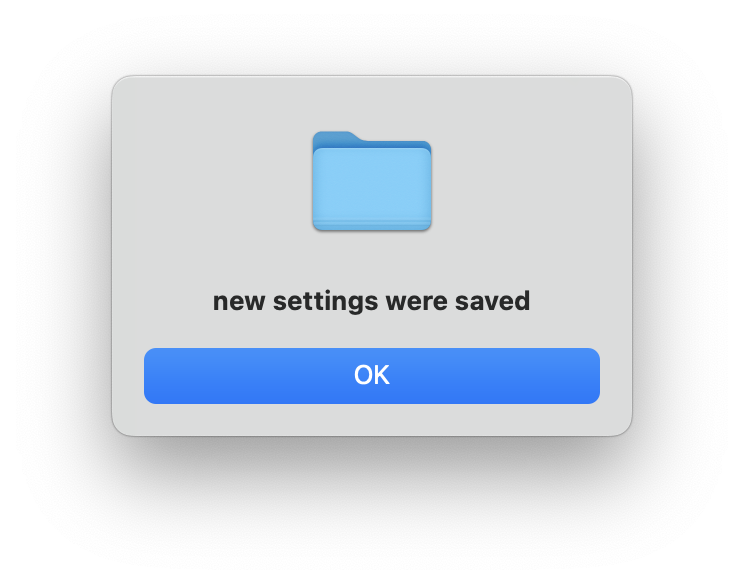
If an error dialog appears instead, verify that the directories specified for:
DATA_DIR
USR_DIR
exist and are accessible.
When the configuration is applied, the following folders are automatically created under USR_DIR if they do not already exist:
USR_DIR/
└── ana/
    ├── tmp/
    └── xml/
If the ana or tmp directories are missing, review the configuration or create them manually. Utsusemi may not function correctly if these directories are not present.
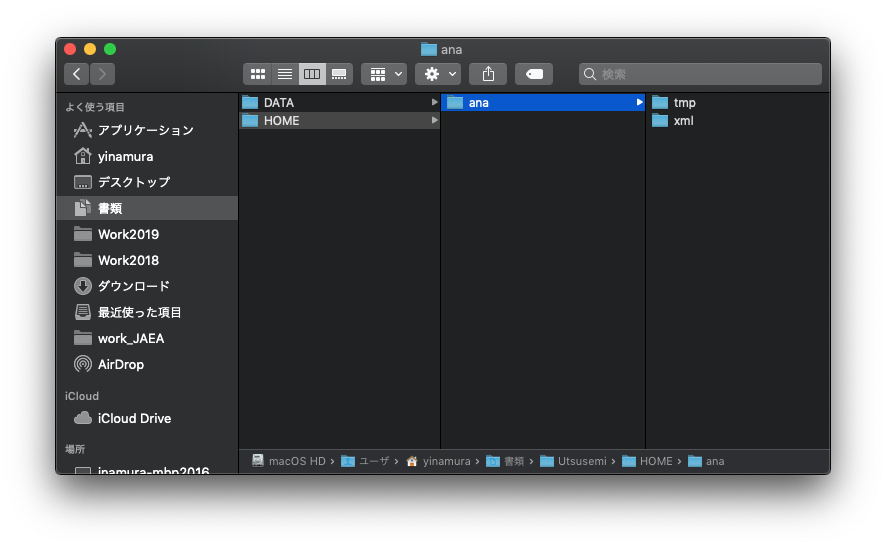
Experimental data should then be stored under the location specified by DATA_DIR, following the directory conventions described below.
Data Organization Rules#
Store data under the directory specified by the DATA_DIR environment variable according to the following rules:
Create a directory whose name matches the instrument code. (Examples: SIK, AMR, SAS)
Within each instrument directory, create run-data directories named according to the beamline run number. (Example: SIK012345_20150301)
Beamline |
Instrument |
Example Data Directory |
|---|---|---|
BL01(4SEASONS) |
SIK |
DATA/SIK/SIK012345_20160401 |
BL02(DNA) |
DNA |
DATA/DNA/DNA012345_20160401 |
BL11(PLANET) |
HPN |
DATA/HPN/HPN012345_20160401 |
BL14(AMATERAS) |
AMR |
DATA/AMR/AMR012345_20160401 |
BL15(TAIKAN) |
SAS |
DATA/SAS/SAS012345_20160401 |
BL19(TAKUMI) |
ENG |
DATA/ENG/ENG012345_20160401 |
Running Utsusemi#
Once environment configuration has been completed and data has been placed in the appropriate directories, Utsusemi applications can be launched for data processing, analysis, and visualization.
Method |
Supported Platforms |
|---|---|
Launch applications from icons |
Windows, macOS |
Launch applications from a terminal |
Linux, macOS |
Execute scripts from a terminal |
Windows, macOS, Linux |
Launching Applications from Icons (Windows/macOS)#
After installation, the following applications can be launched directly from desktop or application-menu icons. Windows, macOSであれば空蟬のインストールにより、以下のアプリケーションもアイコンのダブルクリックで起動できるようになる。
- SequenceEditor
Launches SequenceEditor, the primary workflow editor and data-processing application used in Utsusemi.
- UtsusemiEnvironmentSettings/EnvironSetting
Configures Utsusemi environment variables and runtime settings.
- MPlot, M2PlotPlus
General-purpose visualization applications. MPlot is 1D plotting, M2PlotPlus is 2D plotting. For details, refer to the Utsusemi User Manual.
- D4MatSlicer, D4Mat2Slicer
Launches the multidimensional visualization tools D4MatSlicer and D4Mat2Slicer.
- UtsusemiShell
Launches a command-line shell configured for the selected Utsusemi environment. Within this shell, users can execute beamline-specific commands, run custom scripts, and directly access Utsusemi functionality.
Note
On Windows and for some macOS applications (including SequenceEditor, D4MatSlicer, and D4Mat2Slicer), a Command Prompt or Terminal window is opened together with the GUI application. Closing the terminal window will also terminate the associated application.
Launching Applications from a Terminal (Linux/macOS)#
Linux and macOS users can launch Utsusemi applications directly from a terminal. On Windows, terminal execution is primarily used for running scripts.
Linux#
After environment configuration has been completed, execute:
- ::
$ UtsusemiShell
This automatically loads the environment settings and initializes all required environment variables, making Utsusemi commands and applications available.
Command |
Application |
|---|---|
EnvironSetting |
Utsusemi Environment Settings |
SequenceEditor |
SequenceEditor app. |
Ana |
Shortcut command for SequenceEditor app. |
MPlot |
MPlot app. |
M2Plot |
M2PlotPlus app. |
D4MatSlicer |
D4MatSlicer app. |
D4Mat2Slicer |
D4Mat2Slicer app. |
UtsusemiShell |
UtsusemiShell. |
macOS#
Applications can also be launched from UtsusemiShell.
A terminal configured for Utsusemi is opened, allowing users to:
Execute scripts
Access Utsusemi commands
Launch GUI applications
Use Manyo Library functions

Typical startup screen:
===========================================
     You are ready to use Manyo-Lib.
===========================================
AMR HPN SAS SIK DNA NBR

===========================================
  Welcome to Utsusemi Environment for SIK
===========================================
 Ana   : Sequencer
 M2Plot: M2PlotPlus
 D4mat : D4MatSlicer
 D4mat2: D4Mat2Slicer
===========================================

 ------------------------------------------------------
|        ATTENTION
 ------------------------------------------------------
| If ERROR/core dump occurs on doing Utsusemi commands,
| run a command as below to reset Utsusemi environment.
| Or add this to the end of ~/.zshrc .
|
| $ source /Applications/Utsusemi/.opt/bin/_loadenv
 ------------------------------------------------------
yinamura@inamura-studio HOME %
For example:
`bash
Ana
`
launches SequenceEditor. Depending on the instrument type, M2Plot, D4mat, and D4mat2 may also be available.
Important Note for macOS Users#
When launching certain applications on macOS, the following dialog may appear.
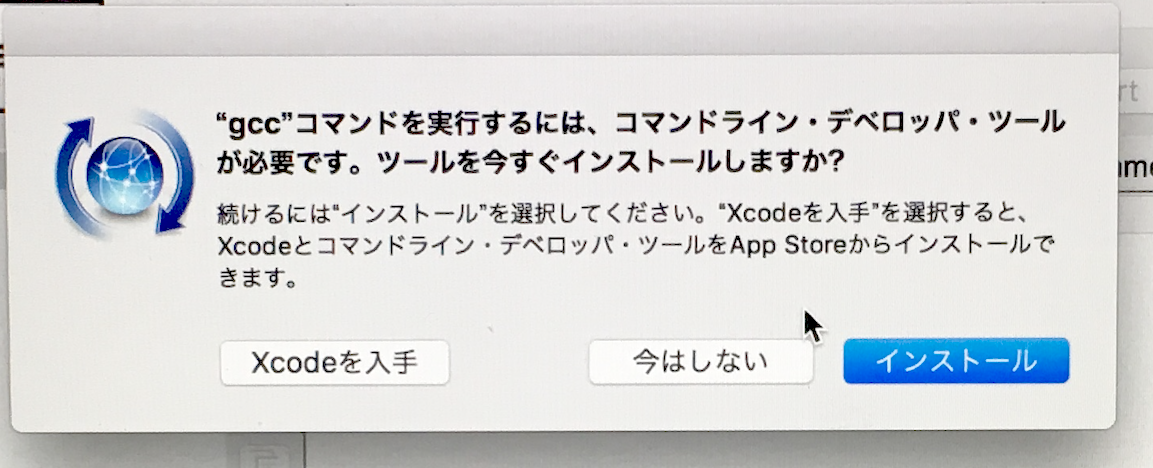
If Install is selected and an Internet connection is available, macOS automatically downloads the minimum required components. You may also select Cancel, but the dialog will appear again in the future.
Avoid selecting Get Xcode unless you specifically require Apple’s software-development environment, as installing Xcode can take a significant amount of time and disk space.
Running Custom Python Scripts#
In addition to the provided applications, users may execute their own Python scripts within the Utsusemi environment. This is useful for custom analysis procedures, prototype algorithms, and beamline-specific workflows.
There are two common approaches:
Method 1: Use UtsusemiShell#
Available on:
Windows
Linux
macOS
UtsusemiShell launches a terminal with all necessary environment variables configured.
Example on Windows:
$ cd \C:\Users\Hoge\
$ python3 sample.py
Method 2: Load the Environment Manually#
If you already use a customized shell environment, load the Utsusemi environment directly.
macOS#
$ source /Applications/Utsusemi/.opt/bin/_loadenv
linux#
$ source /opt/mlfsoft/python-utsusemi/bin/_loadenv
This enables direct access to Manyo and Utsusemi functions:
$ python3
Python 3.9.12 (main, Apr 18 2022, 11:57:03)
[Clang 13.1.6 (clang-1316.0.21.2.3)] on darwin
Type "help", "copyright", "credits" or "license" for more information.
>>> import Manyo
Manyo>>>
Checking the Installed Version#
The installed Utsusemi version can be useful when reporting bugs or verifying software updates.
Format: Utsusemi_X.Y.Z_nnnn
Component |
Meaning |
|---|---|
X.Y.Z |
Major, minor, and patch version number of the release |
nnnn |
Release build identifier or update date code |
Using Python#
The release number can be obtained by commands on UtsusemiShell as below.
import utsusemi
utsusemi.__version__
Example output:
'4.0.0'
Or commands below shows more information.
import UtsusemiInfo
Example output:
---------------------------------------------
               Utsusemi Info
---------------------------------------------
         version :  X.Y.Z (rev nnnnnn)
  Contact person : Yasuhiro Inamura
          e-mail : xxxxx.yyyyy@j-parc.jp
---------------------------------------------
As with the installer filename, X.Y.Z represents the software release version and nnnnnn represents the internal revision or update identifier.