Installing the Utsusemi Binary Package on macOS#
- Author:
Yasuhiro Inamura
- Last Updated:
Sep. 3rd, 2026
- Supported Utsusemi Release:
4.0 or later
Overview#
This chapter describes how to install the binary release of Utsusemi on macOS.
The installer has been verified on modern versions of macOS beginning with Sonoma and later releases. Please note that the binary installer is intended exclusively for Apple Silicon systems (M-series processors). Intel-based Macs are not supported by this binary distribution.
The following MLF beamlines are currently supported.
BL(code) |
Notes |
|---|---|
BL01(SIK) |
No restrictions |
BL02(DNA) |
QENSfit ap. is not included |
BL11(HPN) |
Teuse app. is not included |
BL14(AMR) |
No restrictions |
BL15(SAS) |
Dview app. is not included |
BL19(ENG) |
Core functionality only |
Supported Operating Systems#
Utsusemi has been tested on the following Apple Silicon versions of macOS:
macOS 26.3 (Tahoe)
macOS 15.3 (Sequoia)
macOS 14.4 (Sonoma)
Installation Overview#
The macOS version of Utsusemi is distributed as a standard macOS installer package (.pkg file).
By double-clicking the package file, Utsusemi is installed into the Applications folder under a folder named Utsusemi.
Downloading the Installer#
Installers can be downloaded from the Utsusemi Installation Portal .
Installation#
Installing Utsusemi#
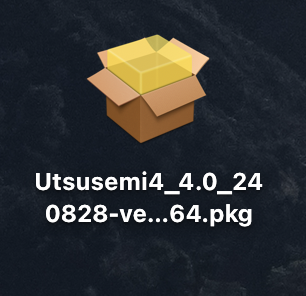
Double-click the installer package.
If a security warning dialog appears immediately after launching the installer, macOS Gatekeeper is preventing the installer from running. This behavior has been observed on macOS Tahoe.
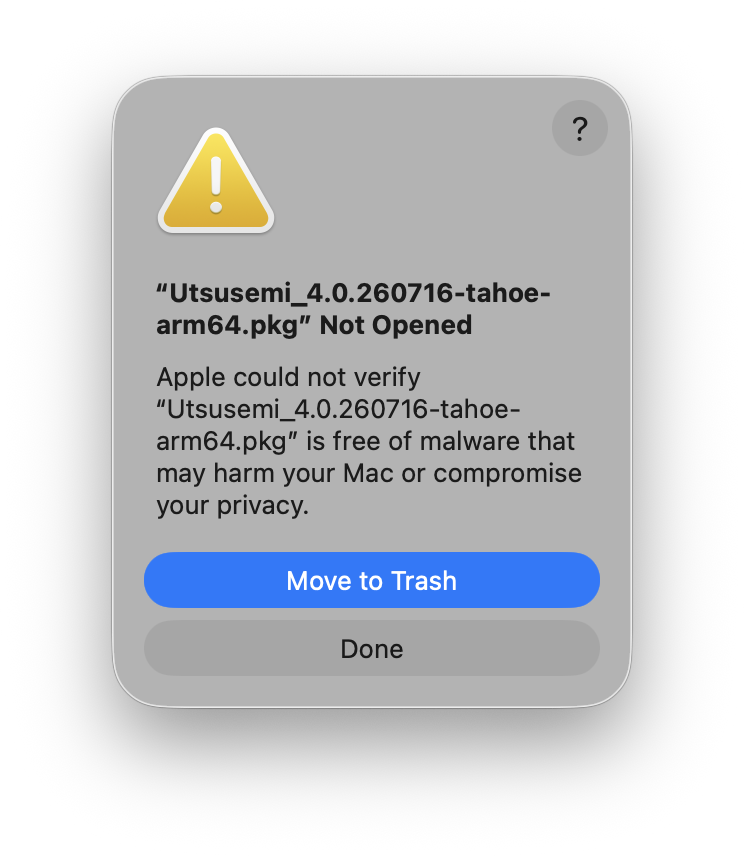
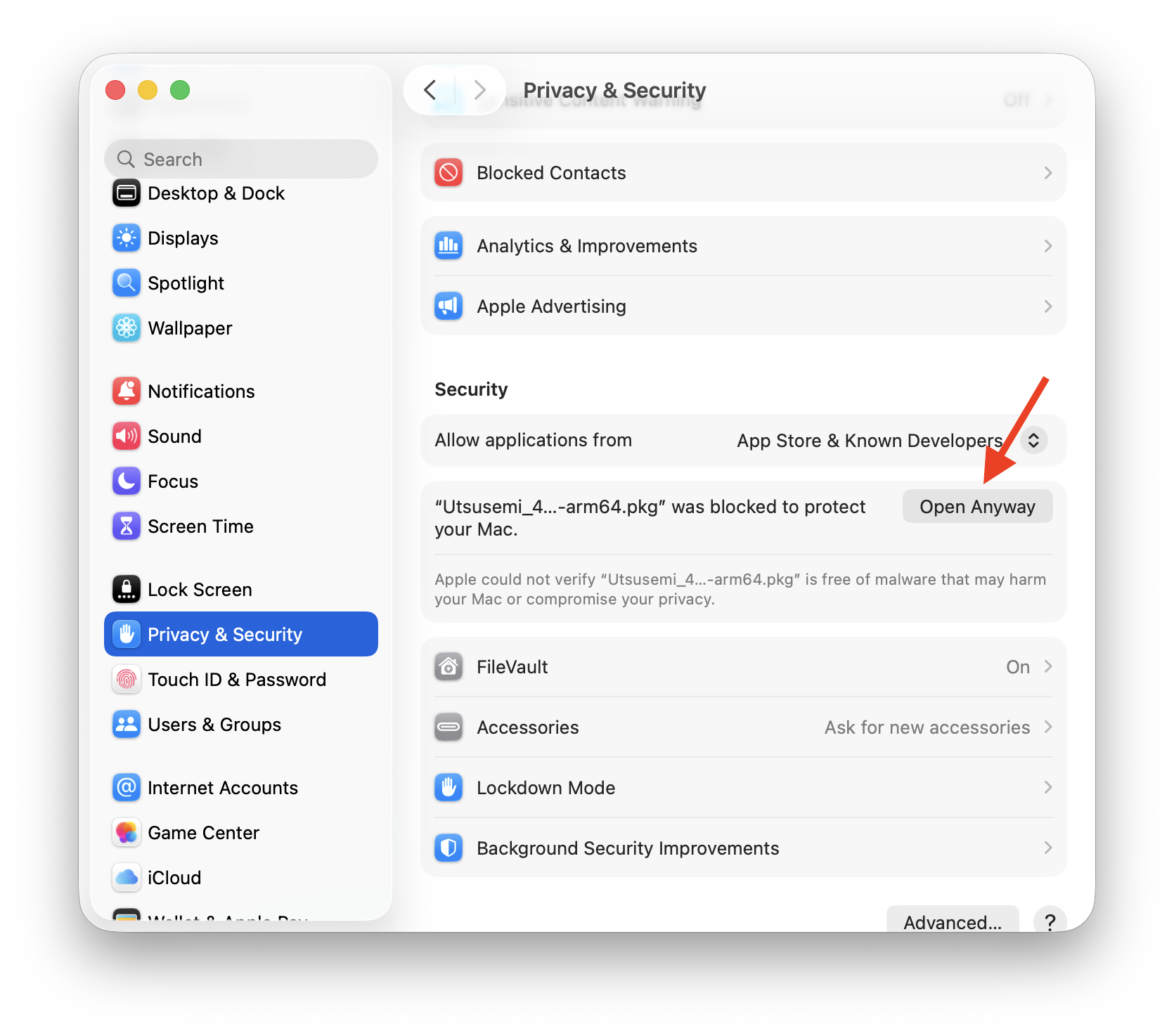
In this case:
Open System Settings
Navigate to Privacy & Security
Locate the security message related to the installer
Click Open Anyway
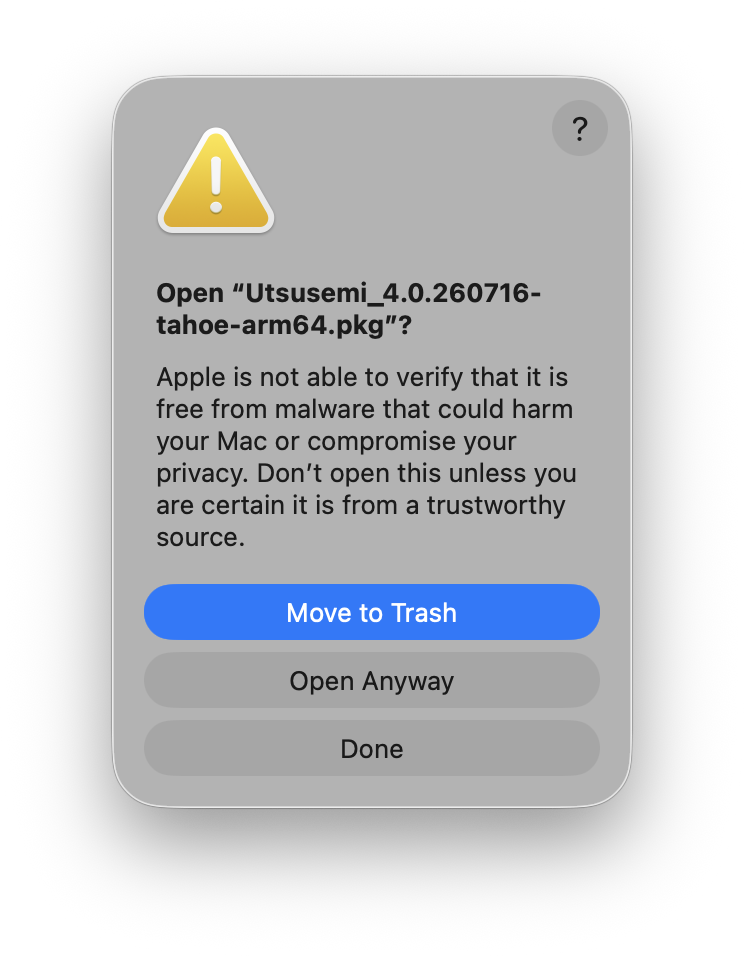
Launch the installer again
Click Open Anyway when the confirmation dialog appears
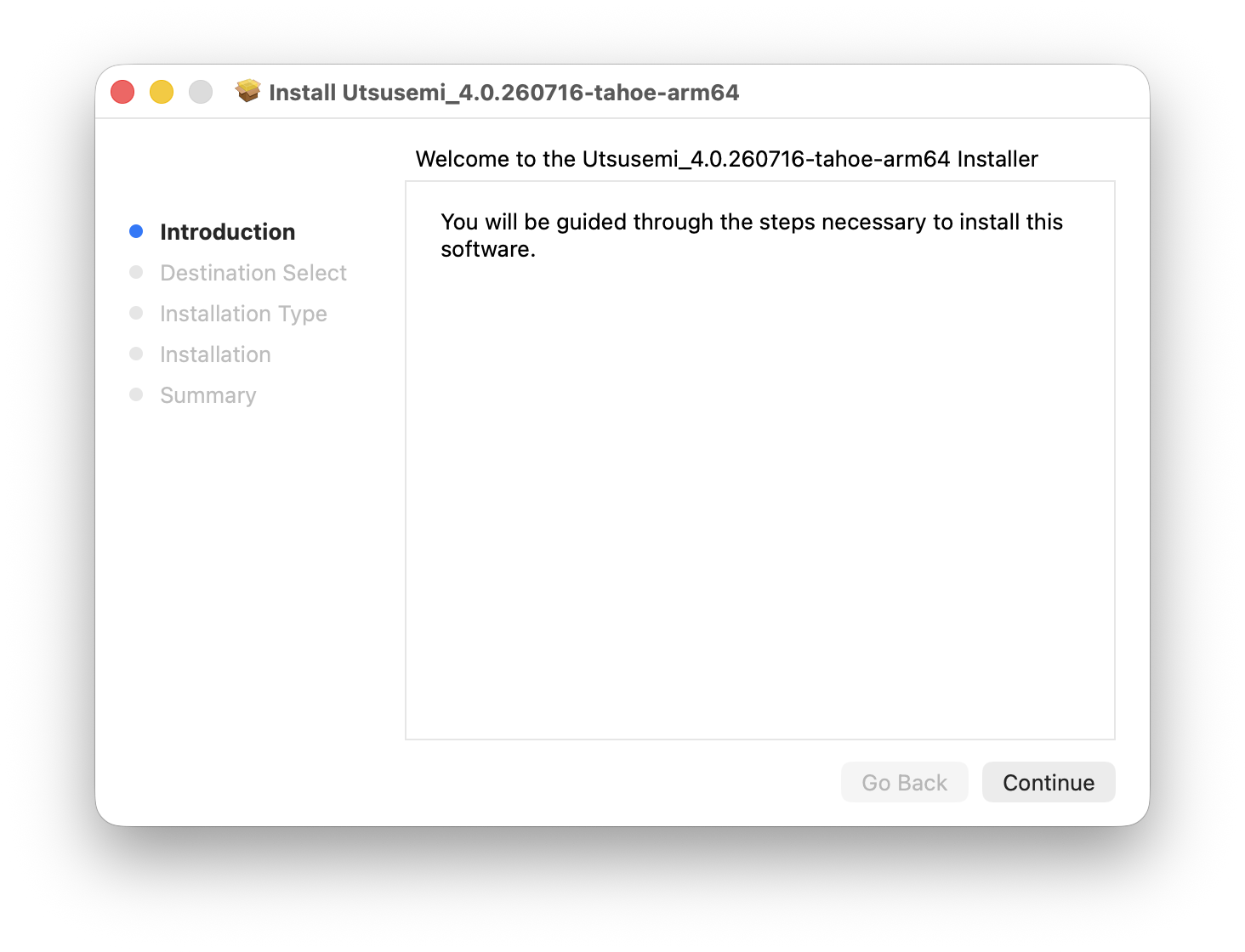
When the standard installer wizard appears, click Continue.
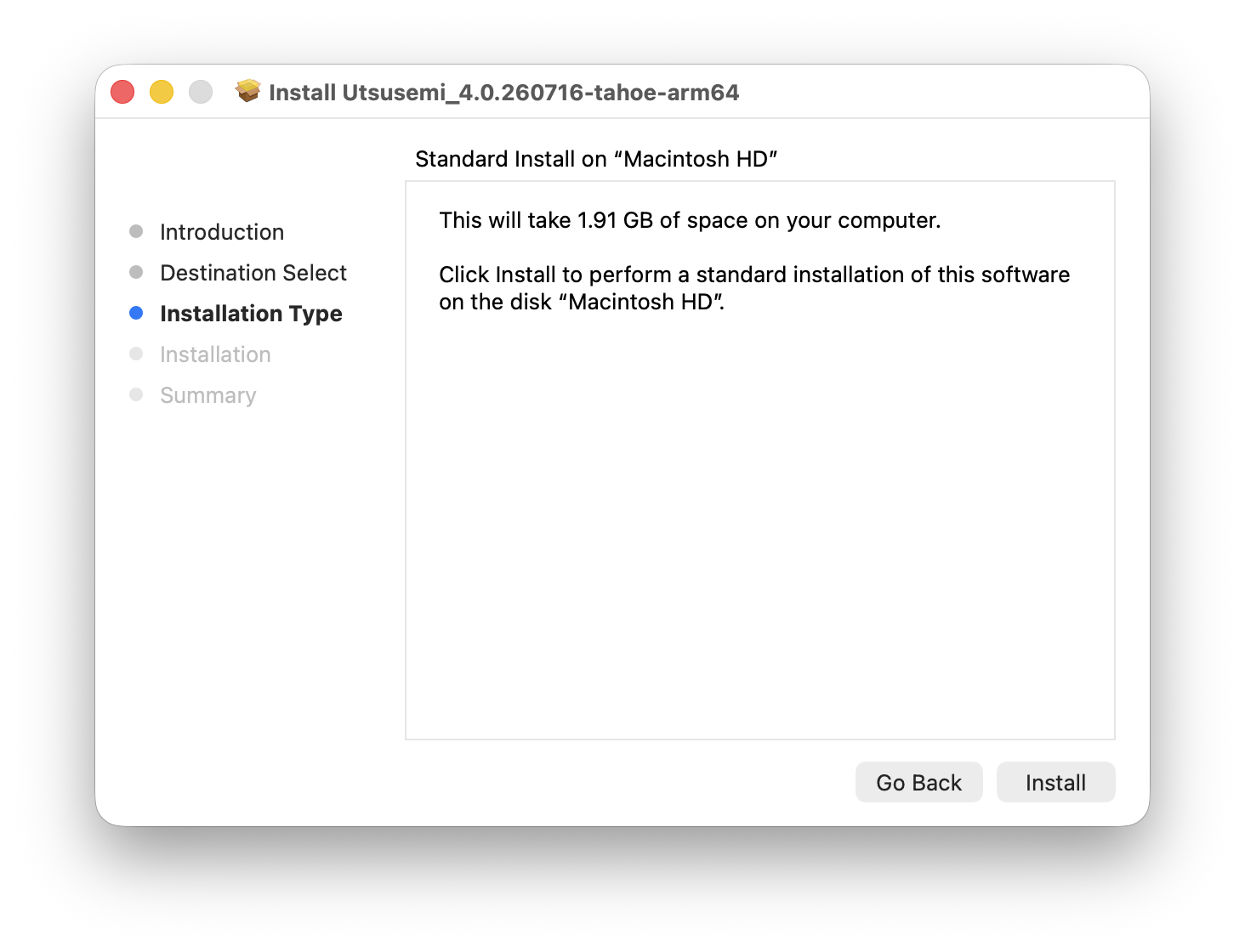
Leave the installation destination unchanged and click Install. The installation location is /Applications/Utsusemi .
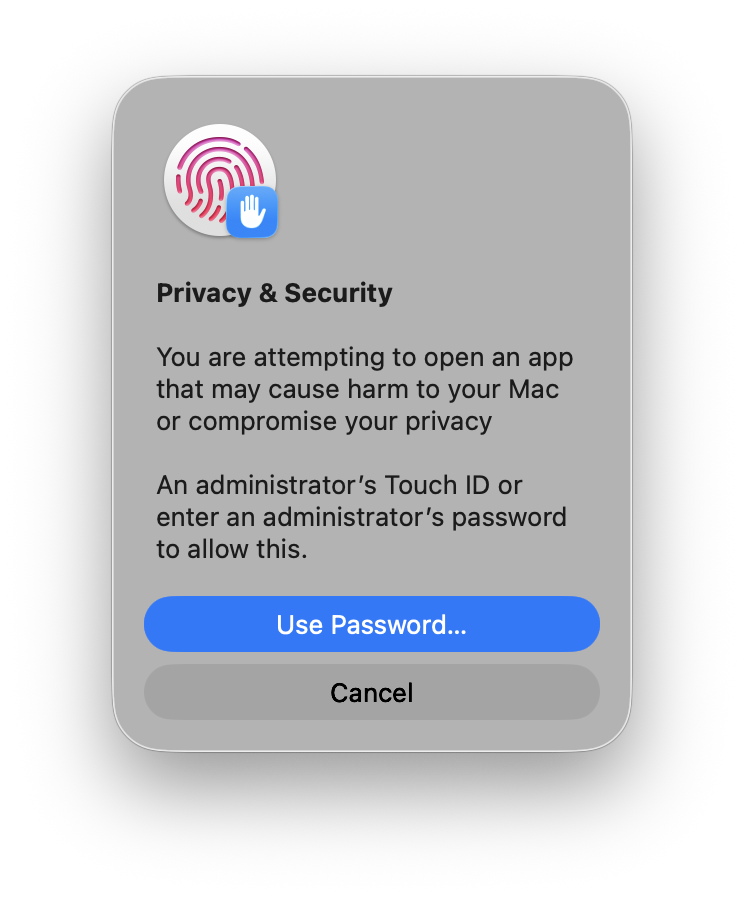
Enter your macOS administrator password when prompted.
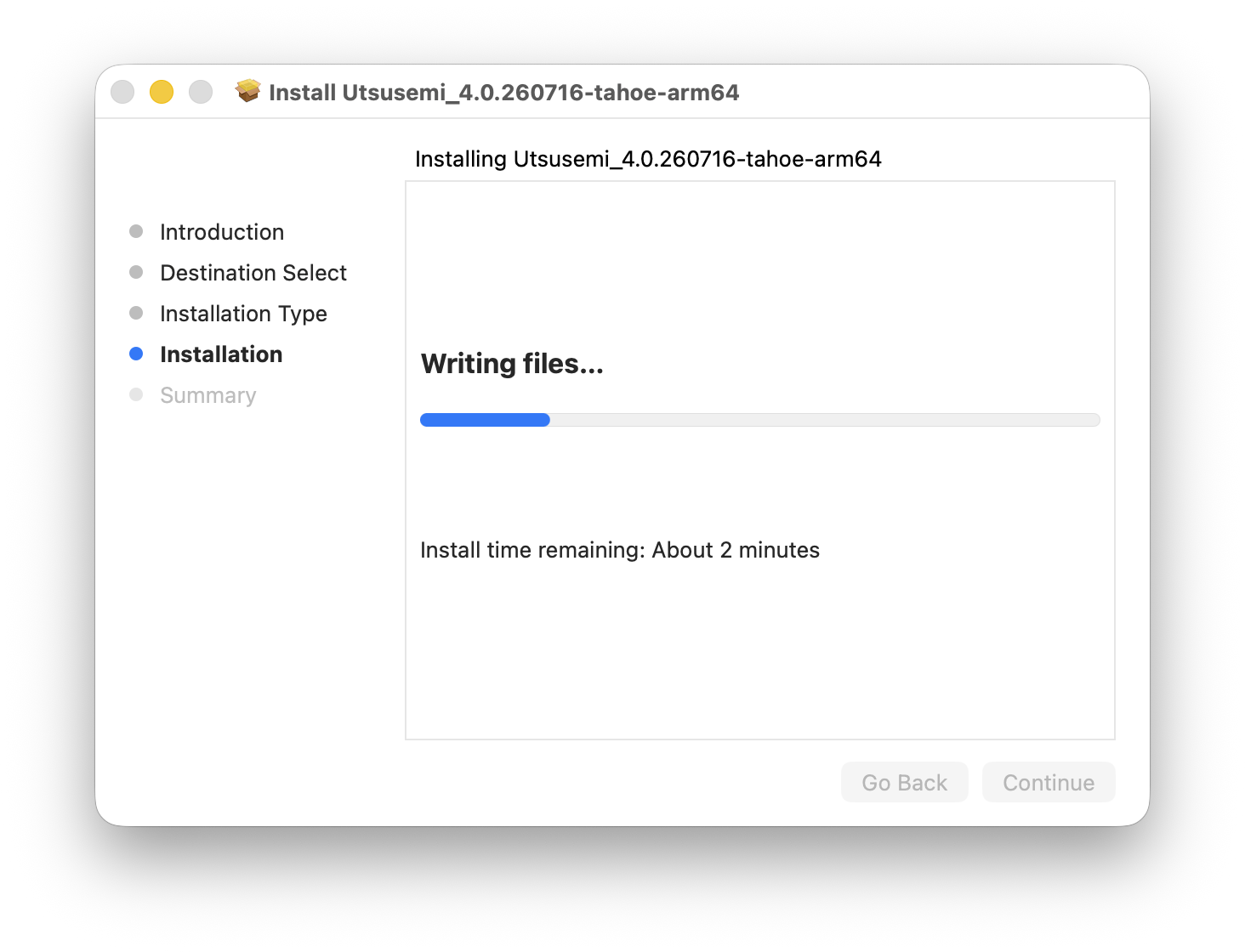
Installation will begin automatically.
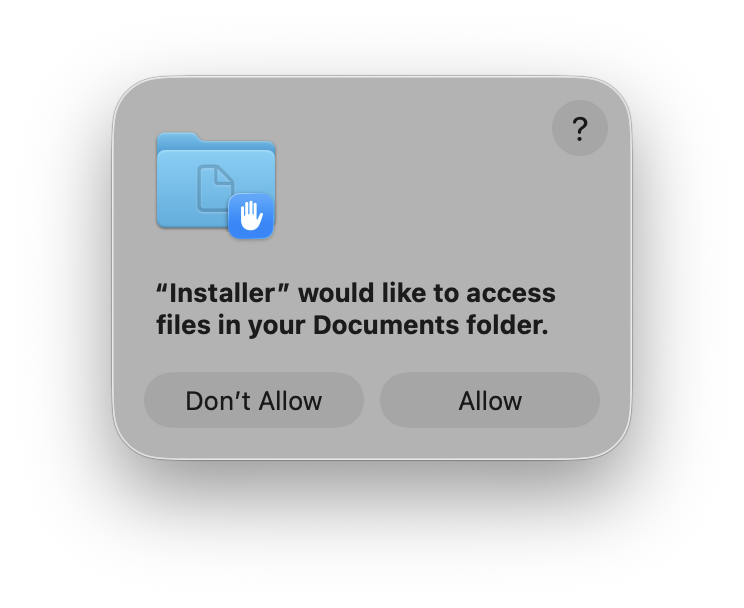
If macOS displays a security confirmation dialog during installation, click Allow.
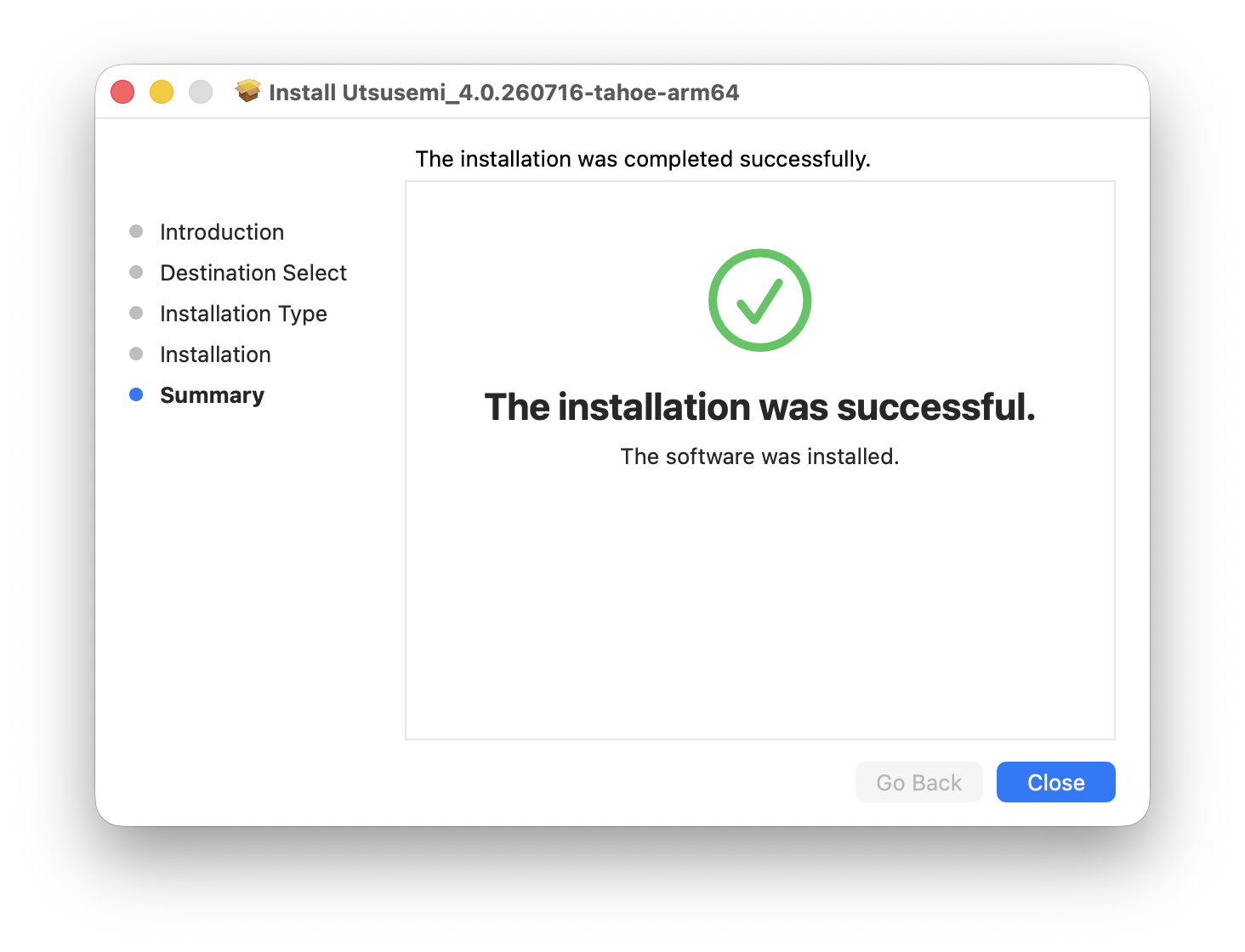
Once installation completes, click Close.
Finally, open UtsusemiShell in Utsusemi folder in Application folder and run the following command. This installs the Python modules required by Utsusemi using pip. (required by version of 4.0.260901 or later)
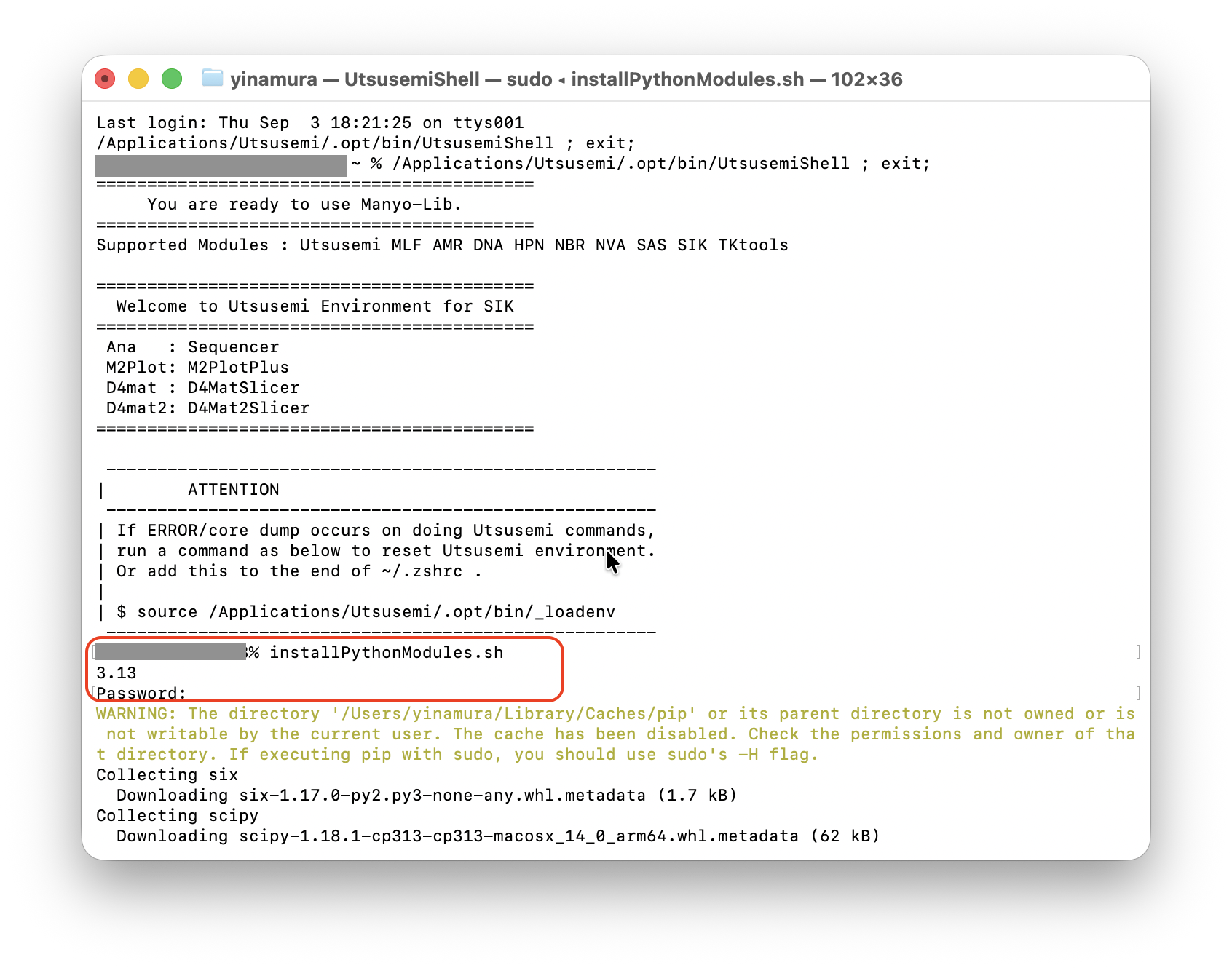
% sudo installPythonModules.sh
If Successfully installed is displayed at the end, as shown in the example below, the installation has completed successfully.
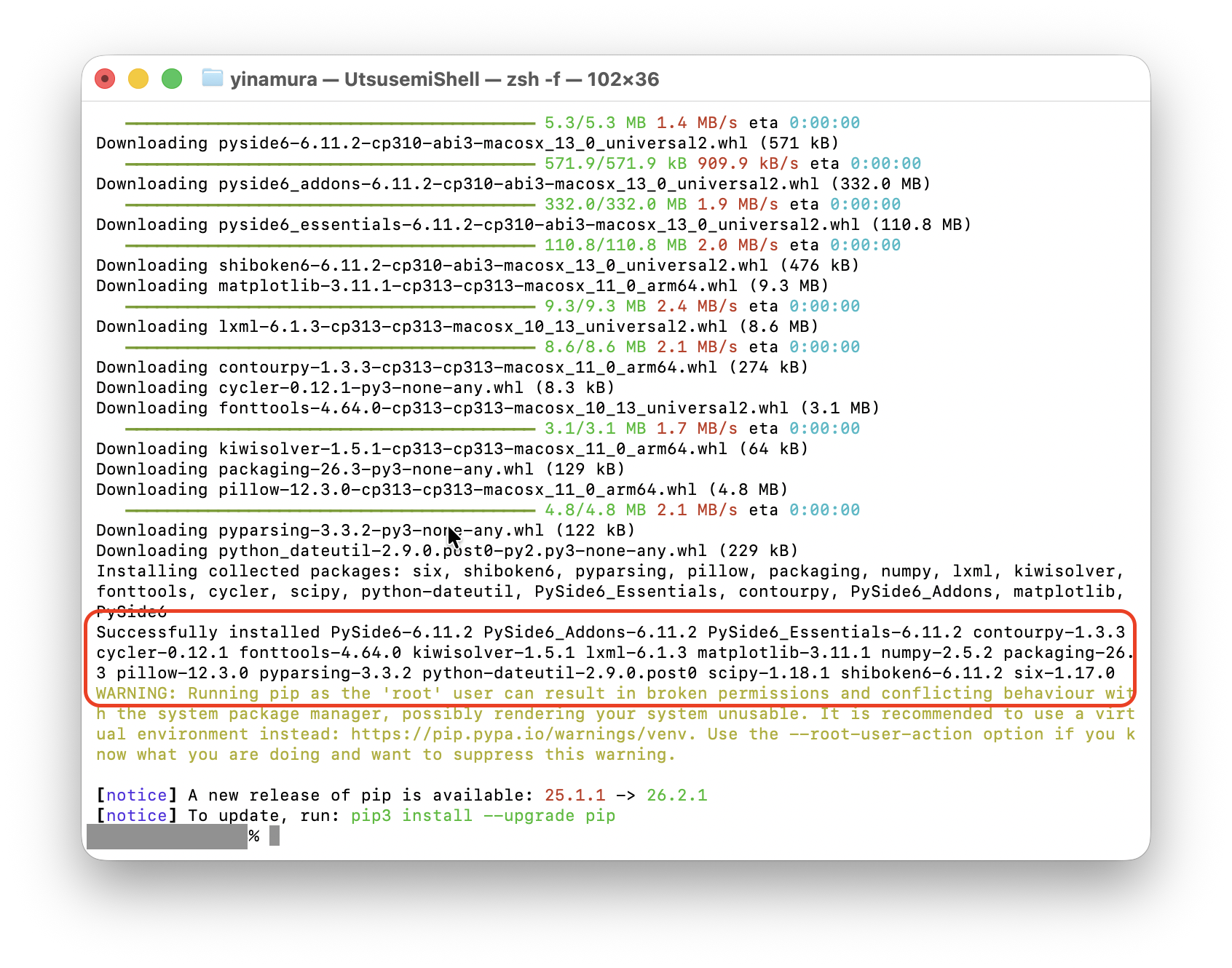
Successfully installed PySide6-6.11.1 PySide6_Addons-6.11.1 PySide6_Essentials-6.11.1 contourpy-1.3.3 cycler-0.12.1 fonttools-4.63.0 kiwisolver-1.5.0 lxml-6.1.1 matplotlib-3.11.1 numpy-2.5.2 packaging-26.3 pillow-12.3.0 pyparsing-3.3.2 python-dateutil-2.9.0.post0 scipy-1.18.0 shiboken6-6.11.1 six-1.17.0
Installed Applications#
The Utsusemi software suite is installed under Applications → Utsusemi .
The applications can also be accessed through Launchpad.
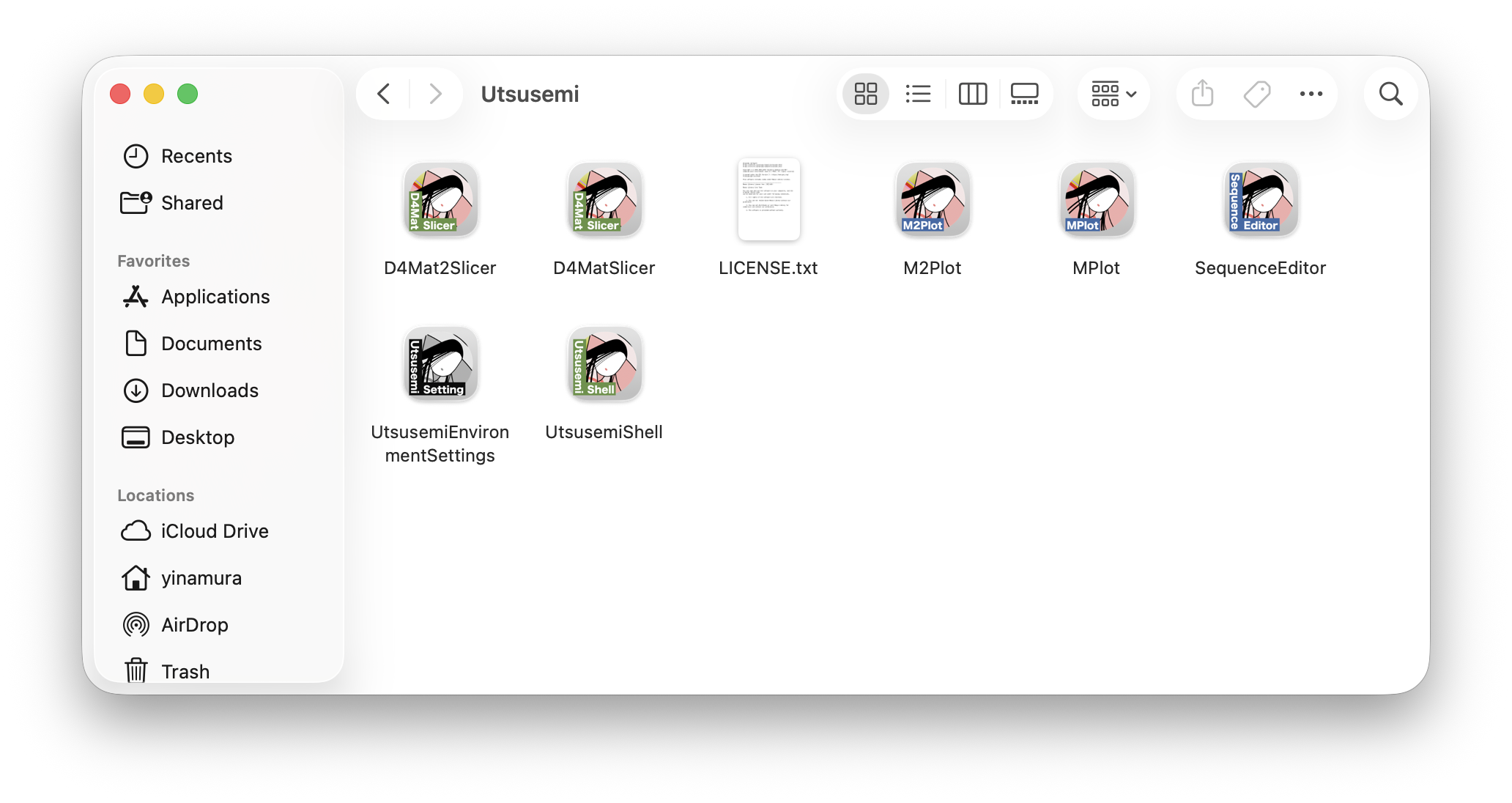
Application |
Description |
|---|---|
D4MatSlicer |
Visualization and analysis tool for multidimensional neutron-scattering datasets. |
D4Mat2Slicer |
Advanced visualization tool for higher-dimensional scattering datasets. |
M2PlotPlus |
Two-dimensional plotting and visualization application. |
MPlot |
One-dimensional plotting and visualization application. |
SequenceEditor |
Main workflow editor used for data reduction and analysis. |
Utsusemi Environment Settings |
Configures Utsusemi environment variables and runtime settings. |
Utsusemi Shell |
Opens a terminal session configured for the Utsusemi environment. |
Uninstallation#
To uninstall Utsusemi, simply move the /Applications/Utsusemi folder to the Trash.
However, some user-created data and configuration files are retained and must be removed manually if complete removal is desired.
DATA_DIR folder |
USR_DIR folder |
Certain configuration files are preserved between installations. These settings are reused if Utsusemi is installed again.
The configuration directory is:
~/Library/Utsusemi |
To remove it manually:
$ rm -rf $HOME/Library/Utsusemi
This directory is normally hidden and does not appear in Finder by default.
Troubleshooting#
If unexpected behavior occurs, such as:
Data reduction does not complete successfully
GUI applications do not function correctly
Buttons or controls fail to respond
Applications terminate unexpectedly
please provide the following information when reporting the issue to the software maintainer:
Utsusemi version
Description of the problem
Relevant log files
Reporting Symptoms#
When reporting a problem, please organize the information as follows:
What you were trying to do
Which command or application was used
What actions were performed
What actually happened
Providing this information helps reproduce and diagnose the issue more efficiently.
Collecting Log Files#
On macOS, log information is handled differently depending on how the application is launched.
Terminal-Based Applications#
Applications such as:
SequenceEditor
D4MatSlicer
D4Mat2Slicer
display their runtime logs directly in the terminal window. These messages can be copied and included in a support report.
Other Applications#
For other applications, log messages are written to:
/tmp/mlfsoft.log
Because the /tmp directory is not normally visible in Finder, you can access the log file using one of the following methods.
Method 1: Copy the Log File to the Desktop#
cp /tmp/mlfsoft.log ~/Desktop
Method 2: Access /tmp Through Finder#
Open Finder.
Select Go → Go to Folder…
Enter:
/tmp
Click Go.
You can then access and retrieve mlfsoft.log directly from the temporary directory.