Installing Utsusemi from Source Using the Installation Script (AlmaLinux / Ubuntu)#
- Author:
Yasuhiro Inamura
- Last Updated:
Sep. 25th, 2025
- Supported Utsusemi Release:
4.0 or later
Overview#
This chapter describes how to install Utsusemi from source code on Red Hat Enterprise Linux compatible distributions, including AlmaLinux 8 and AlmaLinux 9, where binary packages are not provided. Installation is performed semi-automatically using the supplied installation script.
The same installation script also supports Ubuntu 22.04 LTS and Ubuntu 24.04 LTS, and those procedures are described here as well.
As of July 2025, the following MLF beamlines are supported.
BL(code) |
Notes |
|---|---|
BL01(SIK) |
No restrictions |
BL02(DNA) |
QENSfit ap. is not included |
BL11(HPN) |
Teuse app. is not included |
BL14(AMR) |
No restrictions |
BL15(SAS) |
Dview app. is not included |
BL17(VNR) |
No restrictions |
BL19(ENG) |
Core functionality only |
Supported Operating Systems#
The installation script has been validated on the following Linux distributions.
Distributions |
Architecture |
|---|---|
AlmaLinux 8.x, 9.x |
x86_64 (amd64), arm64 |
Ubuntu 24.04 LTS, 22.04 LTS |
|
Linux Mint 23, 22 |
Prerequisites#
This guide assumes that Linux has already been installed on the target computer.
To take advantage of distribution-provided packages whenever possible, the system should be connected to the Internet and able to access the appropriate software repositories.
Internet access is required throughout the installation process. Verifying connectivity with a web browser is sufficient. Detailed network configuration is beyond the scope of this document.
For Red Hat 8-Based Systems (AlmaLinux 8 / Rocky Linux 8)#
Several prerequisite packages and repositories must be configured before installing Utsusemi.
Enable additional repositories
Install Python 3.9 (the default Python version is too old)
Enabling Required Repositories#
Additional repositories are required to install compilers, development tools, and libraries needed by Utsusemi.
Task |
Description |
|---|---|
Development environment |
Install the Development Tools package group |
Additional repositories |
Enable EPEL and PowerTools |
Additional build tools |
Install SWIG and CMake |
$ sudo yum groupinstall base 'Development tools' --setopt=group_package_types=mandatory,default,optional
$ sudo yum install epel-release
To enable the PowerTools repository, edit the appropriate repository configuration file for your distribution.
Distribution |
Repository Configuration File |
|---|---|
AlmaLinux |
/etc/yum.repos.d/almalinux-powertools.repo |
RockyLinux |
/etc/yum.repos.d/Rocky-PowerTools.repo |
Locate the following entry:
enabled=0
and change it to:
enabled=1
Install SWIG and CMake if they are not already available:
$ sudo yum install swig
$ sudo yum install cmake
Update repository metadata (for epel and PowerTools):
$ sudo yum update
Installing Python 3.9#
AlmaLinux 8 ships with Python 3.6, which is too old for current Utsusemi releases.
Install Python 3.9:
$ sudo dnf install -y python39-devel
$ sudo alternatives --set python3 /usr/bin/python3.9
Verify the installation (Example):
$ python3 --version
Python 3.9.25
For Red Hat 9-Based Systems (AlmaLinux 9 / Rocky Linux 9)#
Enable the CRB (Code Ready Builder) repository and EPEL:
$ sudo dnf config-manager --set-enabled crb
$ sudo dnf install epel-release
These repositories provide development tools and libraries required by SWIG and other build dependencies.
Installation Workflow#
The installation process consists of the following steps:
Download the installation package
Run the installation script
Configure the environment
Installation#
Downloading and Extracting the Installation Package#
The installation script and source code are distributed as a single compressed archive.
Download instructions are available from the Utsusemi Portal Site ( https://mlfinfo.jp/groups/comp/ja/utsusemi.html ).
Example filename:
$ ls
Utsusemi_4.0_250924.tar.gz
Here:
4.0 is the release version.
250924 indicates the date of the latest source-code modification.
Extract the archive:
$ tar xzvf Utsusemi_4.0.250924.tar.gz

… (logs)
This creates a directory such as:
Utsusemi_4.0.250924/
Verify:
$ ls -F
Utsusemi_4.0.250924/ Utsusemi_4.0.250924.tar.gz

$ ls -F Utsusemi_4.0.250924/
Install.py src/
Running the Installation Script#
Move into the extracted directory:
$ cd Utsusemi_4.0.250924
Run the installer using Python 3:
$ python3 Install.py
The installation menu will appear. Select an option by entering its menu number. Usually menu #a is the simple way to install.
$ python3 Install.py

==================================================
     Welcome to Utsusemi software installer
==================================================
 Installation Parameters
    MLF software root   : /home/yinamura/mlfsoft
    User's directory    : /home/yinamura/utsusemi
    Number of threads   : 2
    Build with the parallel processing : NOT USE

----------------------------------------------------------
Main menu :
1 .. Install ALL modules (all beamlines)
--------
2 .. Install Manyo Library and Utsusemi codes
3 .. Add Beamline Environment

5 .. Change Installation Parameters
7 .. Uninstall
0 or 9 .. Exit
----------------------------------------------------------

>> Which ?
Menu. |
Description |
|---|---|
1 |
Perform a complete installation. Recommended for first-time installations and full upgrades. Equivalent to options 2 and 3 combined. |
2 |
Install required packages and build the Manyo Library and core Utsusemi components. |
3 |
Install and configure beamline-specific environment packages. |
5 |
Modify installation parameters. |
7 |
Uninstall Utsusemi. |
0 or 9 |
Exit the installer. |
The installer displays the following configurable parameters. These parameters can be modified by the menu #5.
Parameter |
Description |
|---|---|
MLF software root |
Root installation directory for Manyo Library and Utsusemi |
User’s directory |
User workspace directory |
Number of threads |
Maximum thread count for parallel data processing |
Build with parallel processing |
Enables parallel compilation |
Environment Configuration#
After installation completes, a configuration file, named bashrc_utsusemi , is created under the selected MLF software directory.
Activate the environment:
$ source ~/mlfsoft/bashrc_utsusemi
Example contents:
# Utsusemi environment setting
export MLFSOFT_PATH=/home/hoge/mlfsoft
export PATH=${MLFSOFT_PATH}/python-utsusemi/utsusemi/bin:${PATH}
To enable the environment automatically every time you start a shell:
- ::
$ cat ~/mlfsoft/bashrc_utsusemi >> ~/.bashrc
This configuration:
Defines the installation location through MLFSOFT_PATH
Adds Utsusemi executable commands to PATH
Additional Requirements for Ubuntu 24#
When Utsusemi is built on Ubuntu 24, Python packages are not automatically installed into the system environment because system-wide pip installation is restricted.
Packages |
Minimum Version |
pip install |
Ubuntu 24 Package name |
|---|---|---|---|
Numpy |
1.6.x or later |
numpy |
python3-numpy |
Scipy |
0.10.x or later |
scipy |
python3-scipy |
matplotlib |
1.2.x or later |
matplotlib |
python3-matplotlib |
PySide2 or PySide66 |
5.x or later |
PySide6 |
python3-pyside2.qtcore python3-pyside2.qtwidgets |
Using a virtual environment (venv) is recommended.
Example:
sudo apt install python3-venv

mkdir /path/to/work/folder
cd /path/to/work/folder

python3 -m venv venv

source venv/bin/activate

python3 -m pip install numpy scipy matplotlib PySide6
To activate later:
cd /path/to/work/folder
source venv/bin/activate
Verification#
Verify that the installation succeeded by launching:
$ EnvironSetting
If the application starts successfully, the installation is complete.
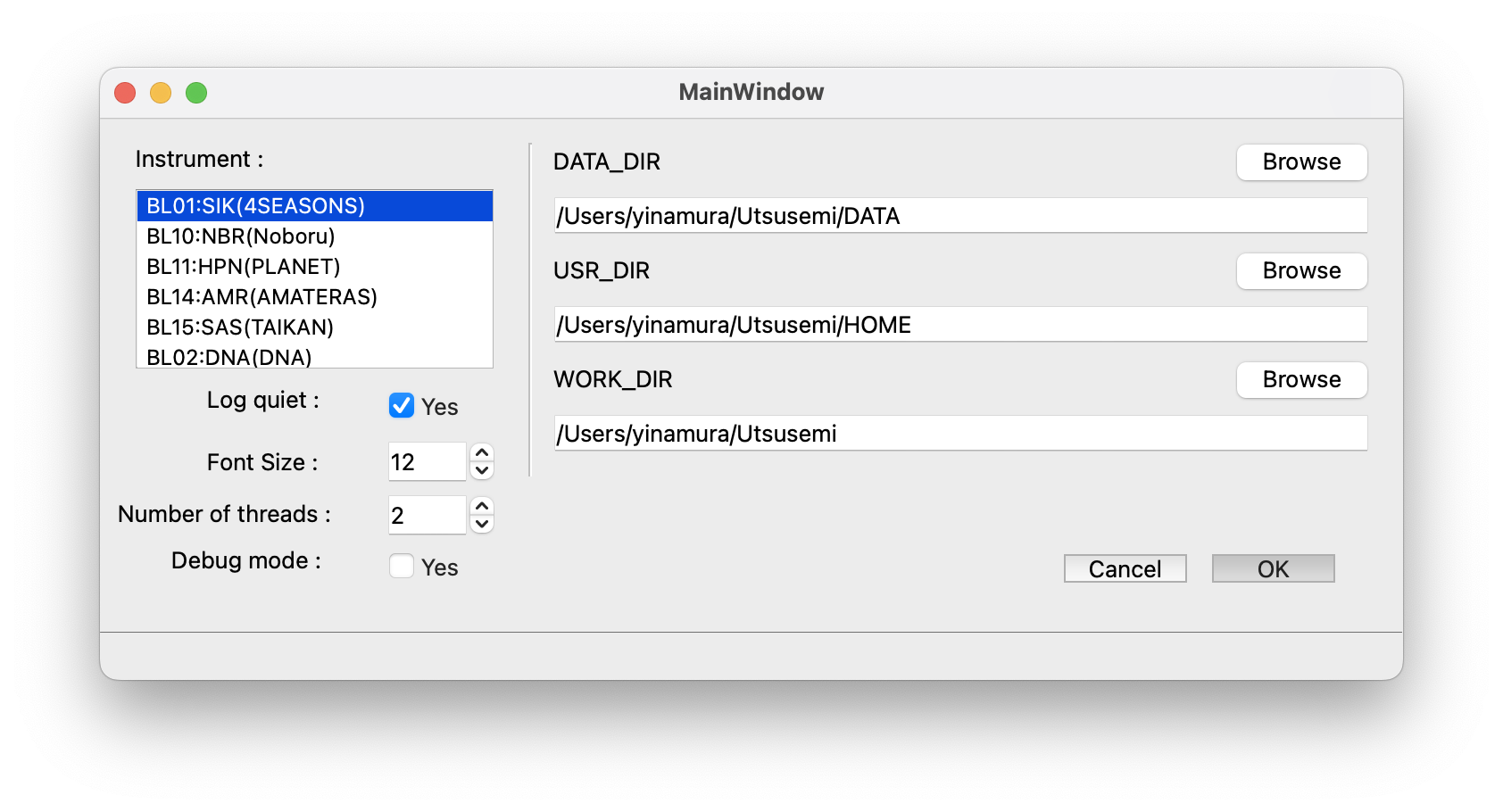
If errors occur, review both the installation procedure and environment configuration.
Uninstallation#
Launch the installer and select:
9..... Uninstall
Additional directories can be removed manually:
$ rm -r ~/utsusemi
$ sudo rm -r ~/data
Additional Information#
Troubleshooting#
If installation errors or unexpected behavior occur:
Verify the operating system version.
Confirm that the correct installation procedure was followed.
Report the issue to the software maintainer if the problem persists.
For runtime issues, include:
Utsusemi version
Detailed error description
Commands executed
Relevant log files
Checking the Installed Utsusemi Version#
After activating the Utsusemi environment:
$ python3
>>> import utsusemi
>>> utsusemi.__version__
Example output:
4.0.220825
Alternatively:
$ python3
>>> import UtsusemiInfo
Example output:
---------------------------------------------
                Utsusemi Info
---------------------------------------------
version : 4.0 (rev 220825)
Contact person : Yasuhiro Inamura
e-mail : yasuhiro.inamura@j-parc.jp
---------------------------------------------
The version number indicates the software release, while the revision number corresponds to the source-code update level.