Installing Utsusemi Using Debian Binary Packages on Ubuntu and Linux Mint#
- Author:
Yasuhiro Inamura
- Last Updated:
Sep. 26th, 2025
- Supported Utsusemi Release:
4.0 or later
Overview#
This chapter describes how to install the Utsusemi software environment on Ubuntu Linux or Linux Mint using Debian binary packages.
As of September 2025, the beamlines supported by the Debian package distribution are listed in the table below.
BL(code) |
Notes |
Status |
|---|---|---|
BL01(SIK) |
No restrictions |
Supported |
BL02(DNA) |
QENSfit ap. is not included |
Supported |
BL11(HPN) |
Teuse app. is not included |
Supported |
BL14(AMR) |
No restrictions |
Supported |
BL15(SAS) |
Dview app. is not included |
Supported |
BL19(ENG) |
Core functionality only |
Supported |
Supported Operating Systems#
The binary packages described in this chapter support the following Linux distributions:
Distribution |
Available versions |
Available Architecture |
|---|---|---|
Ubuntu Linux |
22.04LTS / 24.04LTS |
x86_64 (amd64) |
Mint Linux |
22 / 23 |
For installation on other Linux distributions (for example CentOS or other Red Hat compatible systems), refer to the corresponding build-from-source installation guide.
Prerequisites#
This guide assumes that Ubuntu Linux or Linux Mint has already been installed on the target computer. Utsusemi relies on packages provided by the operating system wherever possible, so the computer should have Internet access during installation in order to download packages from the distribution repositories.
Root privileges are required to install the software.
Removing Older Script-Based Installations#
By default, older versions of Utsusemi installed using legacy installation scripts are located in:
/opt/mlfsoft/
If this directory does not exist, you may skip this section.
If Utsusemi was previously installed using Debian packages, do not perform the removal procedure described below. Simply continue with the new installation, which will automatically update the existing packages.
To determine whether the existing installation was installed through Debian packages, execute:
$ sudo dpkg -l mlf-manyo1
If the package is not installed through the package manager, output similar to the following will appear:
$ sudo dpkg -l mlf-manyo1
[sudo] password for hoge:
dpkg-query: no packages found matching mlf-manyo1
In this case, remove the legacy installation directory:
$ sudo rm -rf /opt/mlfsoft
If Utsusemi was installed through Debian packages, the command displays package information similar to:
$ sudo dpkg -l mlf-manyo1
Desired=Unknown/Install/Remove/Purge/Hold
| Status=Not/Inst/Conf-files/Unpacked/halF-conf/Half-inst/trig-aWait/Trig-pend
|/ Err?=(none)/Reinst-required (Status,Err: uppercase=bad)
||/ Name             Version            Architecture Description
+++-================-==================-============-==========================>
ii  mlf-manyo1:amd64 0.3.4.210713-ubu20 amd64        Manyo Library
In this case, the existing installation will be updated automatically when the new packages are installed.
Installation Workflow#
The installation procedure consists of the following steps:
Update the Ubuntu or Linux Mint package repository information.
Execute the installation script, or install the required packages manually.
Configure the Utsusemi environment.
Installation#
Updating Repository Information#
Update the package repository information using:
$ sudo apt update
Internet connectivity is required from this point onward. If the command completes successfully, the system is correctly connected to the package repositories.
Installation Procedure#
Download the installation script (installUtsusemi_FromDebianPackages.sh) and execute it with root privileges.
If a previous copy of the script exists, remove it first.
$ rm -f installUtsusemi_FromDebianPackages.sh
$ wget https://cdn.mlf.plus/ce/Utsusemi4/Downloads/installUtsusemi_FromDebianPackages.sh
$ sudo bash ./installUtsusemi_FromDebianPackages.sh
[sudo] password for xxx:
The script automatically downloads and installs the latest packages corresponding to the current Ubuntu or Linux Mint version. Downloaded package files are stored in the current working directory and installed using sudo. After installation is complete, both the script and downloaded packages may be deleted safely.
The packages installed by the script are listed in:
Package Name |
Purpose |
Required Package |
|---|---|---|
mlf-manyo1 |
Core Manyo Library runtime package |
|
mlf-utsusemi-with-ugao |
Main Utsusemi package including uGao visualization tools |
mlf-manyo1 |
mlf-utsusemi-sas |
BL15(TAIKAN) support package |
mlf-utsusemi-with-ugao |
mlf-utsusemi-dna |
BL02(DNA) support package |
mlf-utsusemi-with-ugao |
mlf-utsusemi-eng |
BL19(TAKUMI) |
mlf-utsusemi-with-ugao |
Package filenames follow a naming convention similar to:
Filenames |
|---|
mlf-manyo1_0.4.250717-ubu24_amd64.deb |
mlf-utsusemi-with-ugao_4.0.250926-ubu24_amd64.deb |
mlf-utsusemi-sas_4.0.250630-ubu24_amd64.deb |
mlf-utsusemi-dna_4.0.250629-ubu24_amd64.deb |
mlf-utsusemi-eng_4.0.250926-ubu24_amd64.deb |
For example:
mlf-utsusemi-with-ugao_4.0.250926-ubu24_amd64.deb
In this filename:
4.0 is the Utsusemi release version.
250926 is the source-code update date.
ubu24 indicates Ubuntu 24.04 compatibility.
amd64 identifies the target CPU architecture.
The release version and update date evolve independently.
Installing Only Specific Beamline Packages#
If you want to minimize the number of installed packages, you may install only those required for a specific beamline.
To do so, supply the beamline code as an argument to the installation script.
Example for BL01 (SIK):
$ rm -f installUtsusemi_FromDebianPackages.sh
$ wget https://cdn.mlf.plus/ce/Utsusemi4/Downloads/installUtsusemi_FromDebianPackages.sh
$ sudo bash ./installUtsusemi_FromDebianPackages.sh SIK
[sudo] password for xxx:
The supported beamline codes are listed in:
Beamline |
Code |
|---|---|
BL01 (4SEASONS) |
SIK |
BL02 (DNA) |
DNA |
BL11 (PLANET) |
HPN |
BL14 (AMATERAS) |
AMR |
BL15 (TAIKAN) |
SAS |
BL19 (TAKUMI) |
ENG |
Environment Configuration#
Environment configuration prepares the runtime environment required by Utsusemi.
This consists of:
Installing required Python packages
Configuring environment variables needed to run Utsusemi applications
Required Python Packages#
The following Python packages are required:
空蝉に必要なPythonパッケージは以下の通りである。基本的に pip やUbuntuのパッケージ管理の apt コマンドでインストールする。
Packages |
required version |
pip install |
Ubuntu Packages (Not recomended) |
|---|---|---|---|
Numpy |
1.6.x or later |
numpy |
python3-numpy |
Scipy |
0.10.x or later |
scipy |
python3-scipy |
matplotlib |
1.2.x or later |
matplotlib |
python3-matplotlib |
PySide2 or PySide6 |
5.x or later |
PySide6 |
python3-pyside2.qtcore python3-pyside2.qtwidgets |
These packages are typically installed using either pip or the Ubuntu package manager (apt).
Because Python packages provided by Ubuntu repositories are often older than current releases, using a Python virtual environment (venv) together with pip is recommended.
Note
Prior releases of the Utsusemi installer automatically installed Python-related dependencies. Packages released on or after January 20, 2026 no longer perform automatic Python package installation.
Warning
If PySide6 is installed via pip, an additional system package must also be installed, as described in the next section.
Example venv Configuration#
sudo apt install python3-venv
mkdir /path/to/work/folder
cd /path/to/work/folder
python3 -m venv utsusemi_env
source utsusemi_env/bin/activate
pytyhon3 -m pip install numpy scipy matplotlib PySide6
To reactivate the environment later:
$ cd /path/to/work/folder
$ source utsusemi_env/bin/activate
(utsusemi-env)$
Additional Requirement for PySide6 Installed via pip#
When PySide6 is installed using pip, install the following Ubuntu package as well:
sudo apt install libxcb-cursor0
Without this package, Qt may fail to initialize and display errors such as:
qt.qpa.plugin: From 6.5.0, xcb-cursor0 or libxcb-cursor0 is needed to load the Qt xcb platform plugin.
qt.qpa.plugin: Could not load the Qt platform plugin "xcb" in "" even though it was found.
This application failed to start because no Qt platform plugin could be initialized. Reinstalling the application may fix this problem.

Available platform plugins are: eglfs, vnc, offscreen, minimal, wayland-brcm, wayland-egl, wayland, vkkhrdisplay, xcb, minimalegl, linuxfb.
Environment Variables#
To launch Utsusemi applications, configure the following environment variables:
MLFSOFT_PATH
PATH
Example:
# Utsusemi environment setting
export MLFSOFT_PATH=/opt/mlfsoft
export PATH=${MLFSOFT_PATH}/python-utsusemi/utsusemi/bin:${PATH}
These settings define the installation location of Utsusemi and add executable programs to the Linux command search path. After configuration, various Utsusemi applications can be launched directly from the terminal.
Verification#
If the installation and environment configuration are correct, the following command should launch the environment configuration utility:
$ EnvironSetting
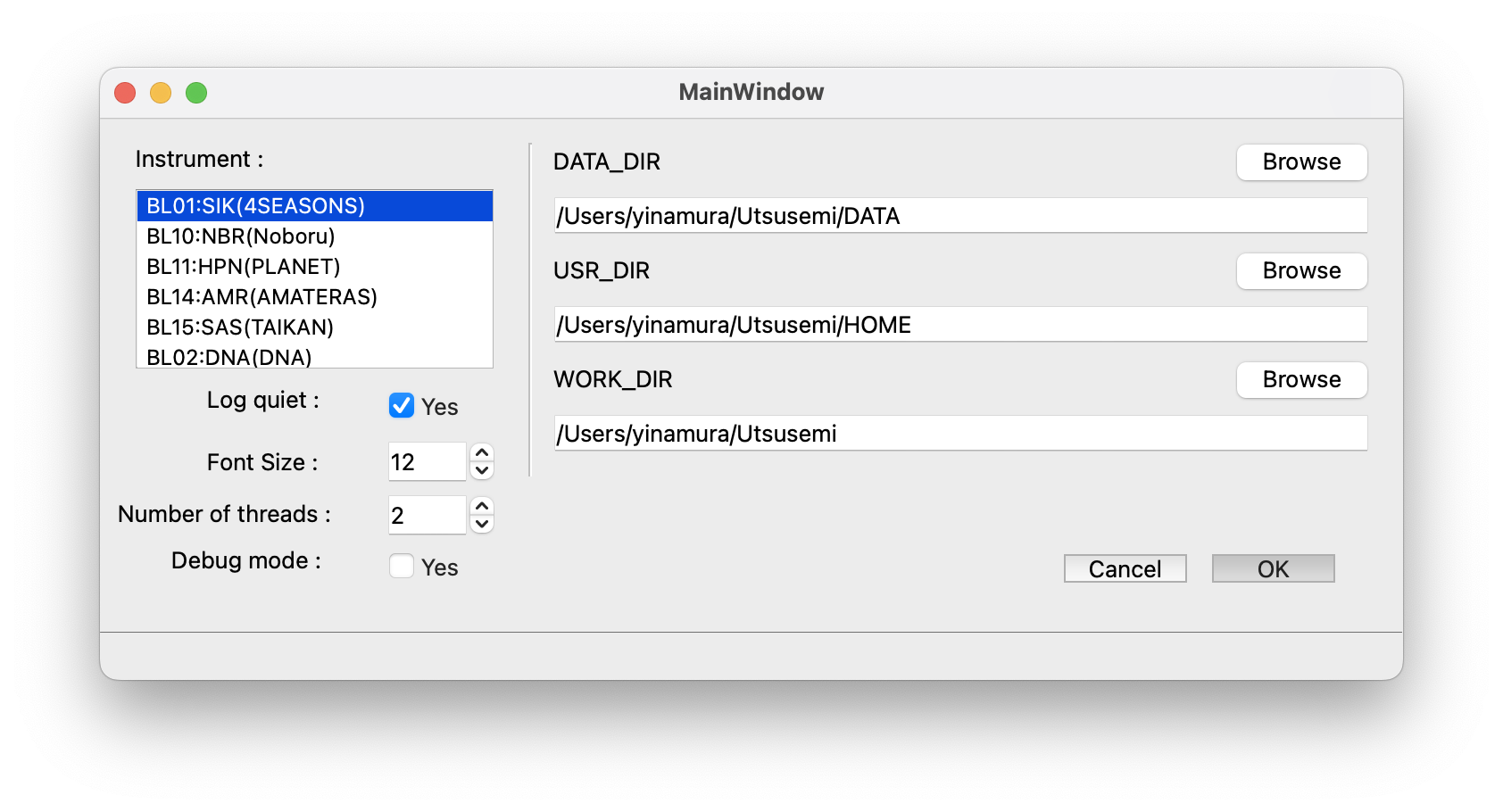
If startup fails because required packages are missing, install the missing dependencies described above. Other errors generally indicate an issue with either the installation procedure or environment configuration, and the installation should be reviewed and repeated.
Error example:
qt.qpa.plugin: From 6.5.0, xcb-cursor0 or libxcb-cursor0 is needed to load the Qt xcb platform plugin.
qt.qpa.plugin: Could not load the Qt platform plugin "xcb" in "" even though it was found.
This application failed to start because no Qt platform plugin could be initialized. Reinstalling the application may fix this problem.

Available platform plugins are: eglfs, vnc, offscreen, minimal, wayland-brcm, wayland-egl, wayland, vkkhrdisplay, xcb, minimalegl, linuxfb.
This error may be fixed by installing required package as below:
$ sudo apt install libxcb-cursor0
Uninstallation#
To remove Utsusemi, uninstall packages in the reverse order of installation:
mlf-utsusemi-dna
mlf-utsusemi-sas
mlf-utsusemi-with-ugao
mlf-manyo1
Example commands:
$ sudo apt remove mlf-utsusemi-eng
$ sudo apt remove mlf-utsusemi-dna
$ sudo apt remove mlf-utsusemi-sas
$ sudo apt remove mlf-utsusemi-with-ugao
$ sudo apt remove mlf-manyo1
Some additional directories may remain after package removal and can be deleted manually if no longer required.
$ rm -rf /data
$ rm -rf ~/ana
Troubleshooting#
If installation errors or unexpected behavior occur, first verify that the procedure matches the target operating system and installation method.
If the problem persists, report the issue to the software maintainer together with:
Operating system version
Installation method used
Error messages displayed
If the issue occurs after installation, also include the installed Utsusemi version number when reporting the problem.
Additional Information#
The required system packages for the Manyo Library are listed in:
Package Name |
|---|
libboost-system |
libboost-filesystem |
libboost-serialization |
libboost-program-options |
libgsl |
libhdf5 |
libnexus |
libssl |